A caption style controls how your captions look: font, color, outline, background and, for animated styles, how words move. It does not change what the captions say or when they appear. ChatCut ships a catalog of ready-made styles, and the Agent can build a custom one when none fits.
This page covers choosing and applying a style. For editing caption text, translating, and exporting subtitle files, see Transcript and Captions.
What kinds of caption styles are there?
The catalog has two kinds. Both are applied the same way.
- Ordinary styles are fixed looks, such as Plain, Netflix, TikTok Pop, White Outline and Heavy Sans.
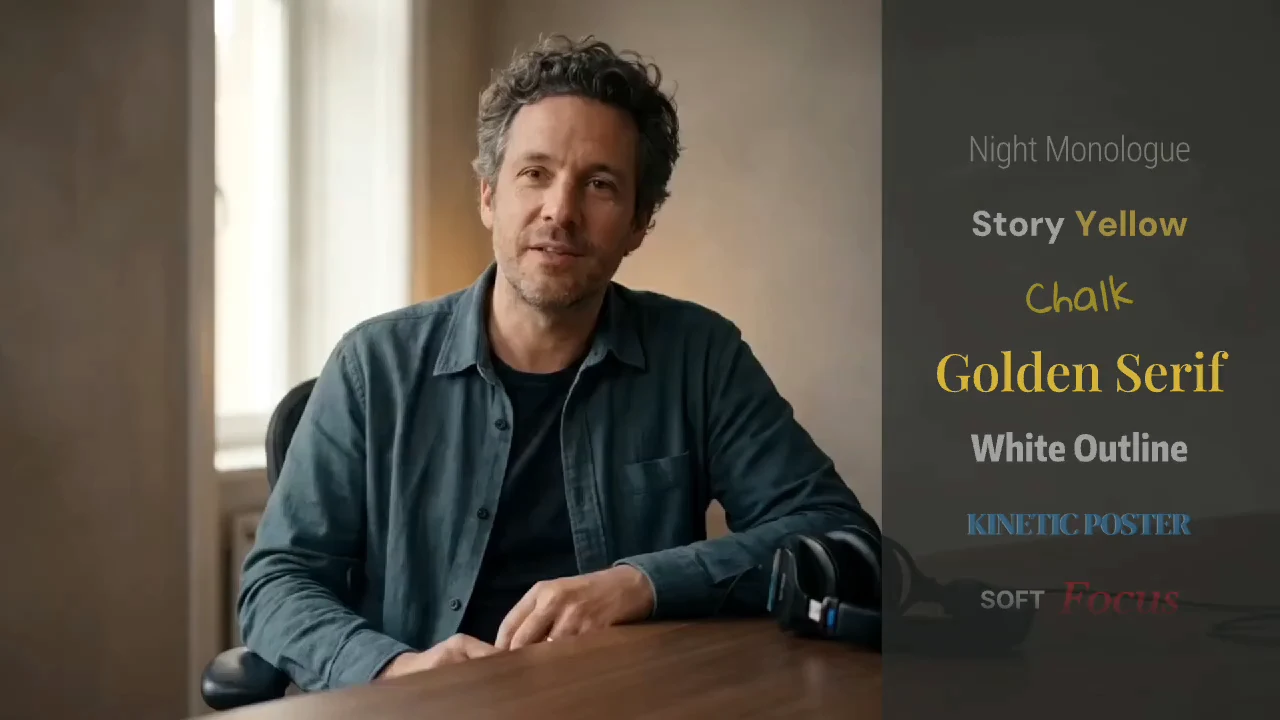
- Animated styles (shown as Dynamic in the gallery) are motion-graphic captions. Words enter, move and emphasize key phrases. Examples are Prime, Elevate, Kinetic Poster, Soft Focus and Chalk. They were added in the 2026-10-30 release.
Some styles are marked Featured. They appear first in the caption style menu.
Animated styles
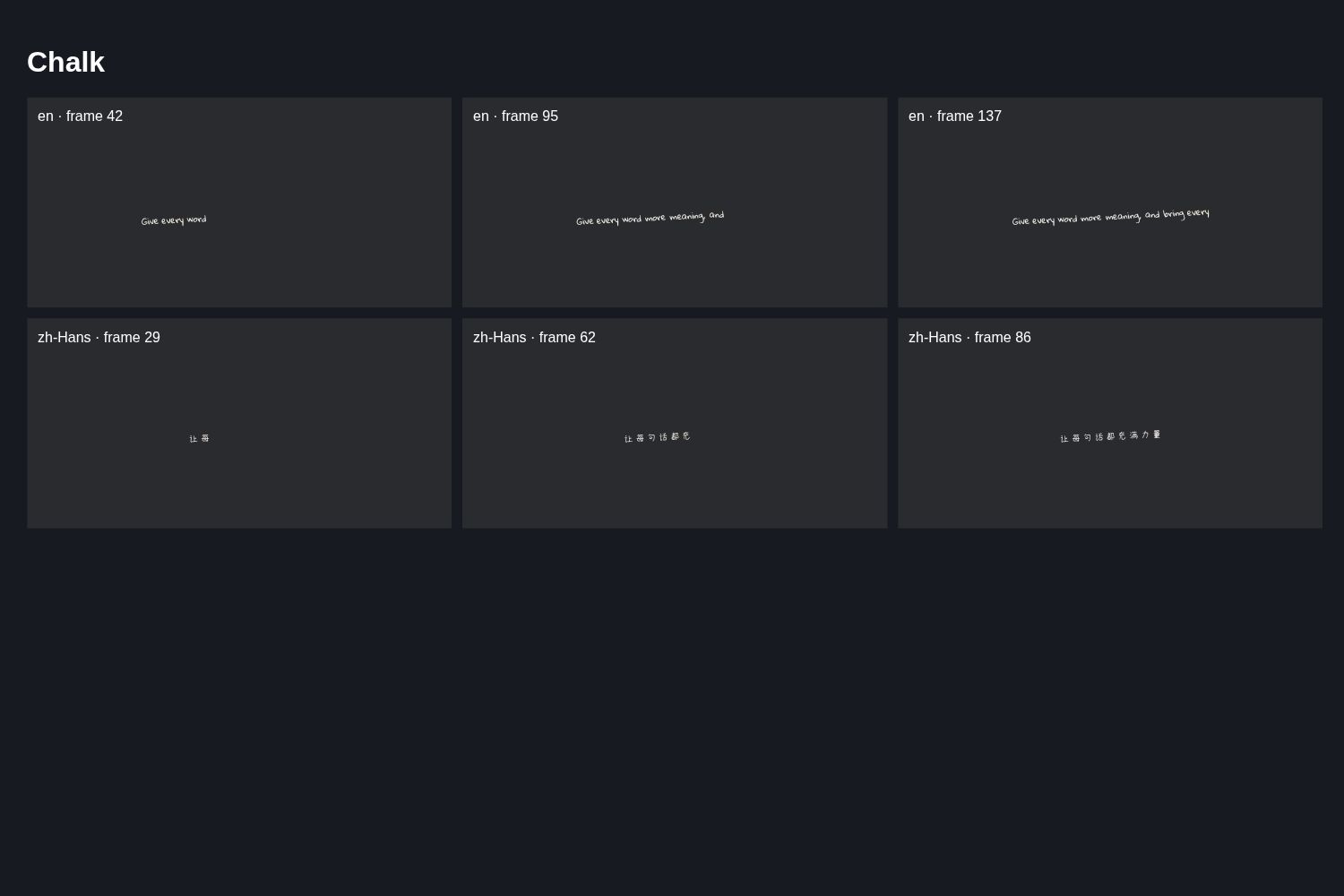 FeaturedChalk
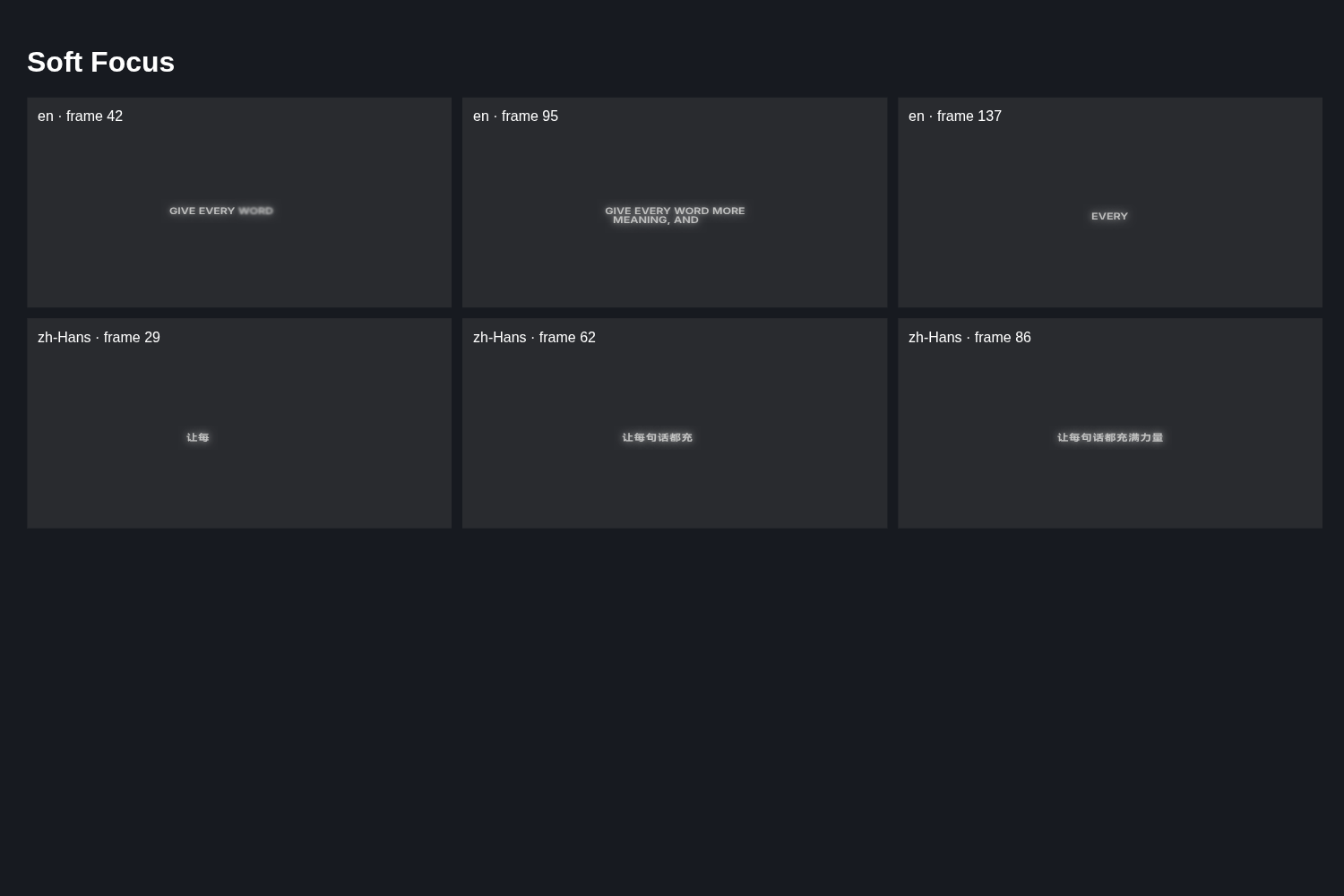 FeaturedSoft Focus
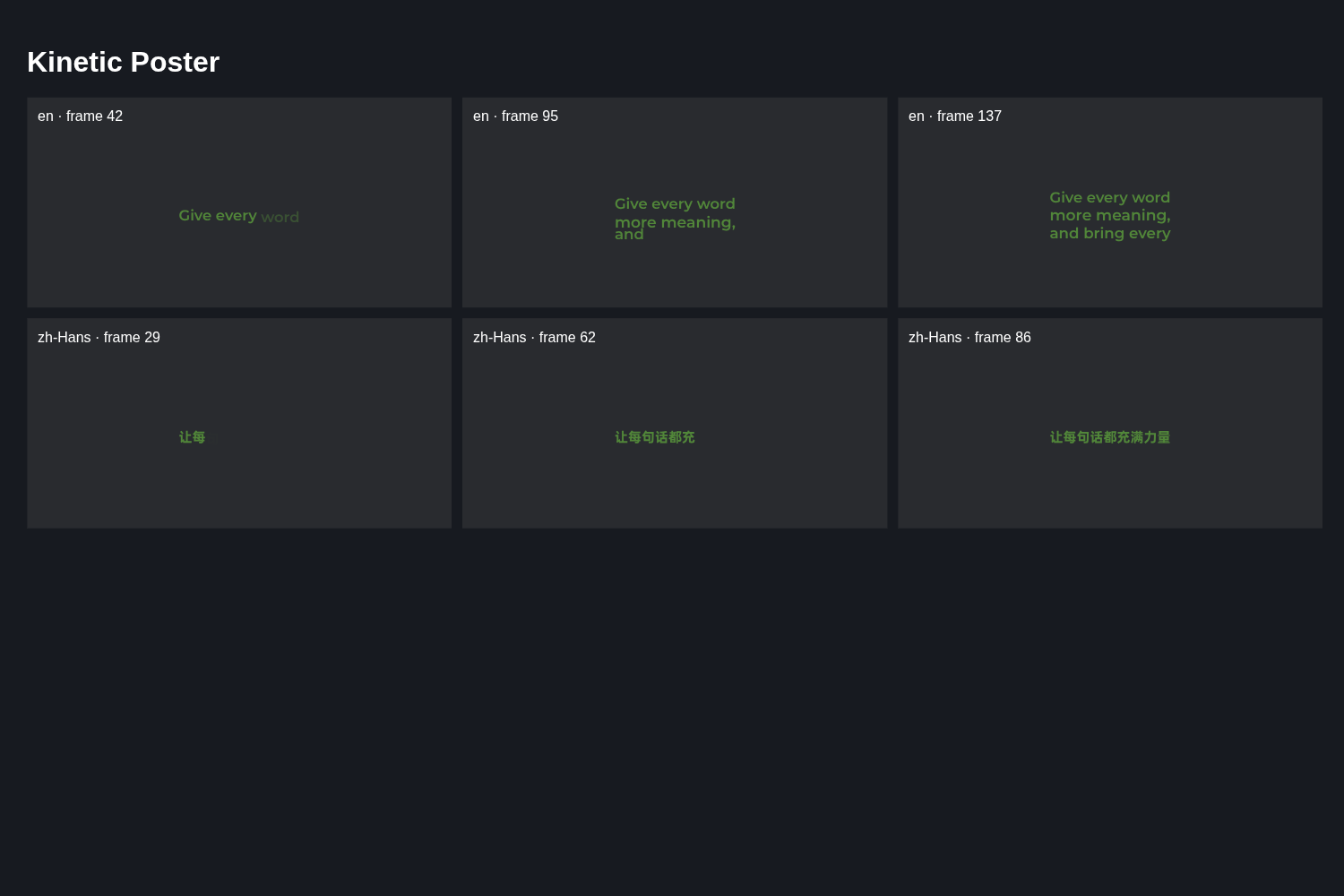 FeaturedKinetic Poster
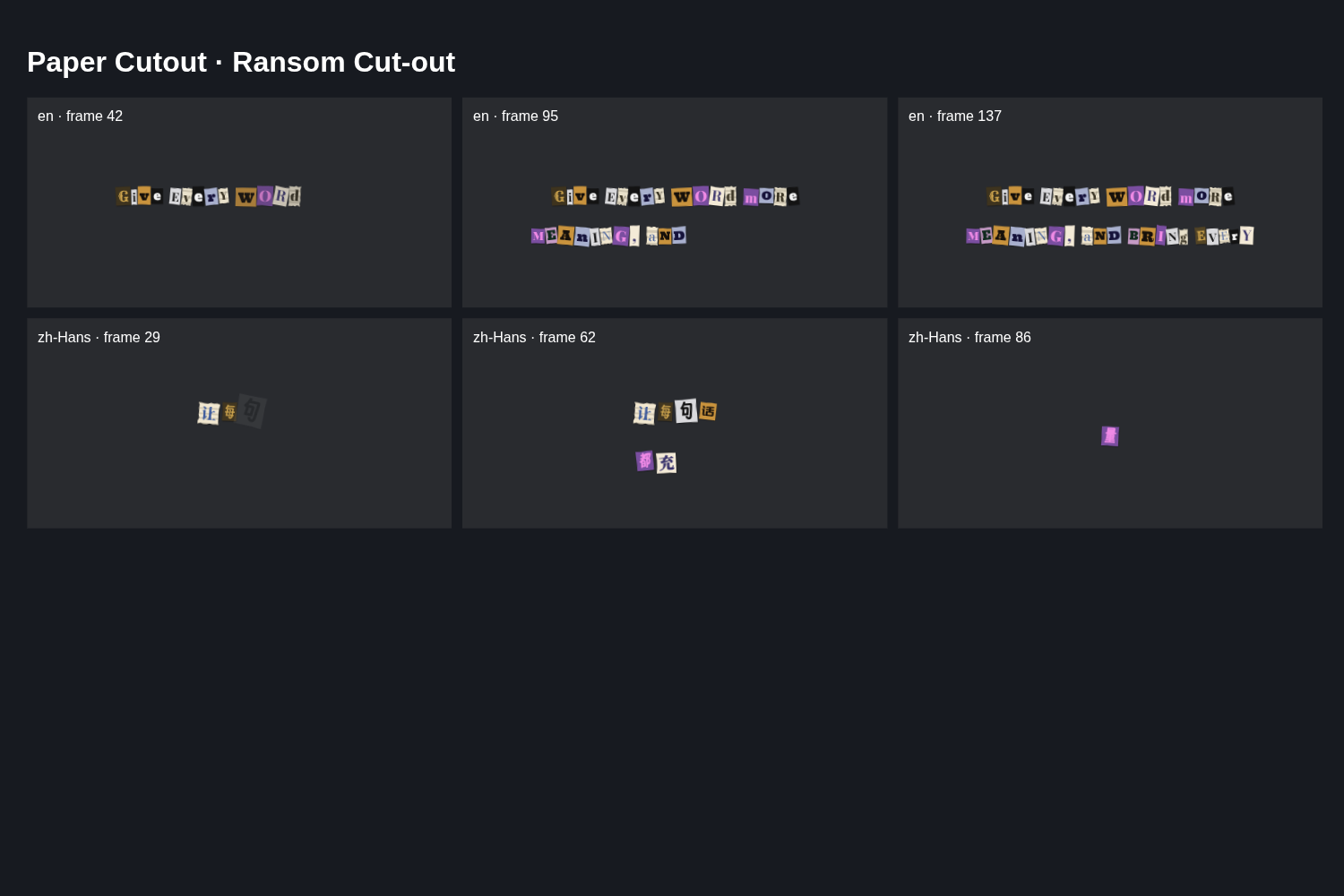 FeaturedPaper Cutout · Ransom Cut-out
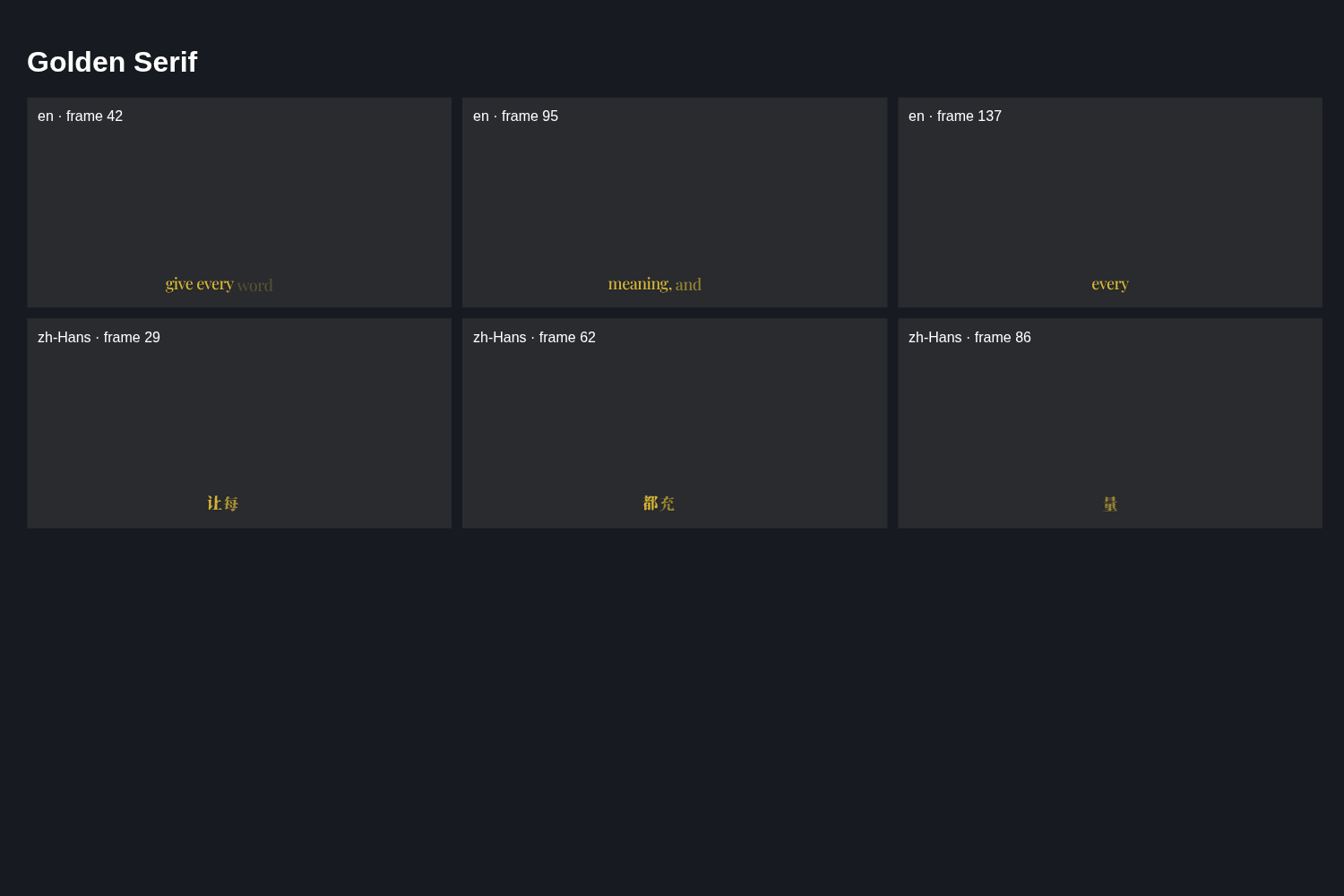 FeaturedGolden Serif
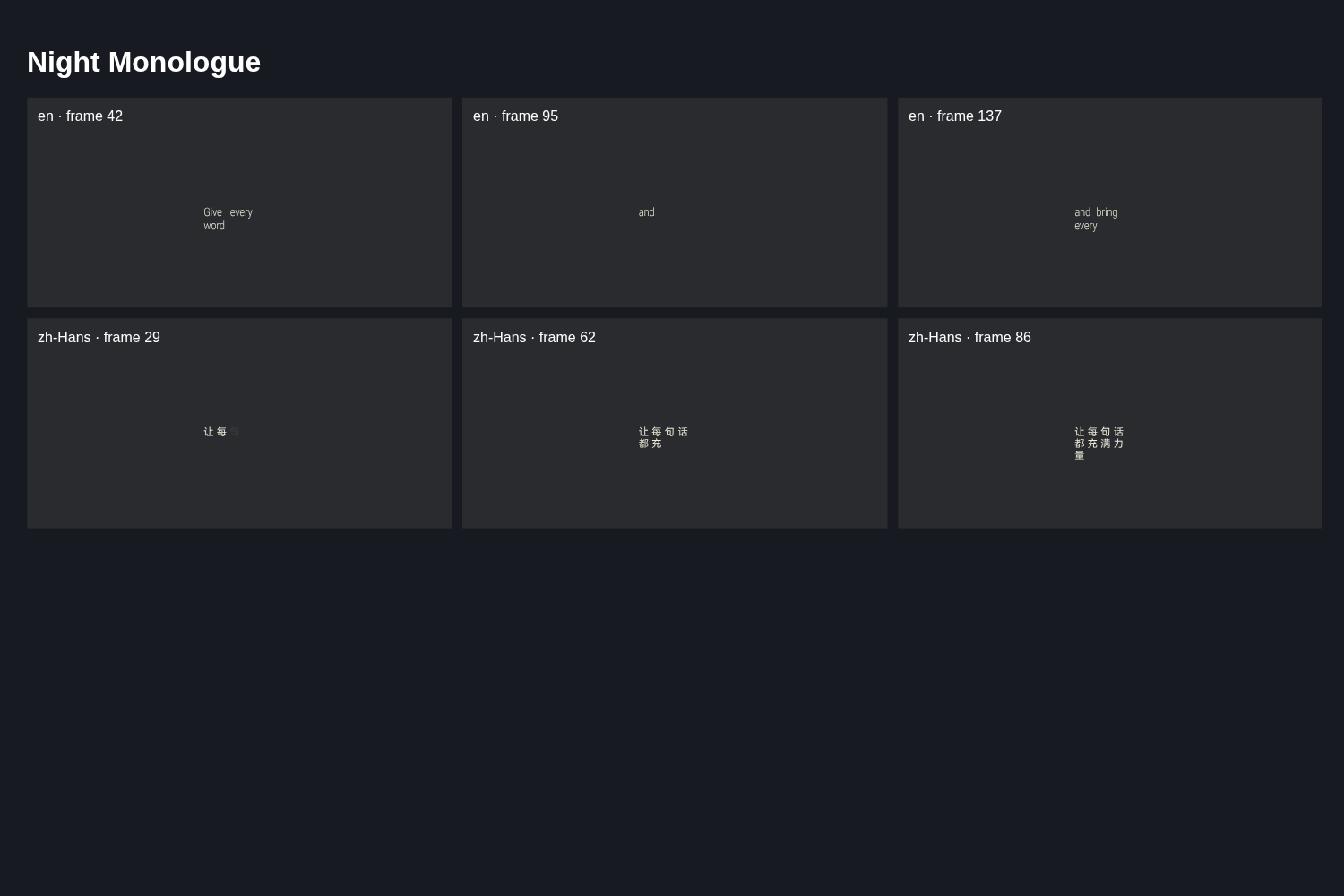 FeaturedNight Monologue
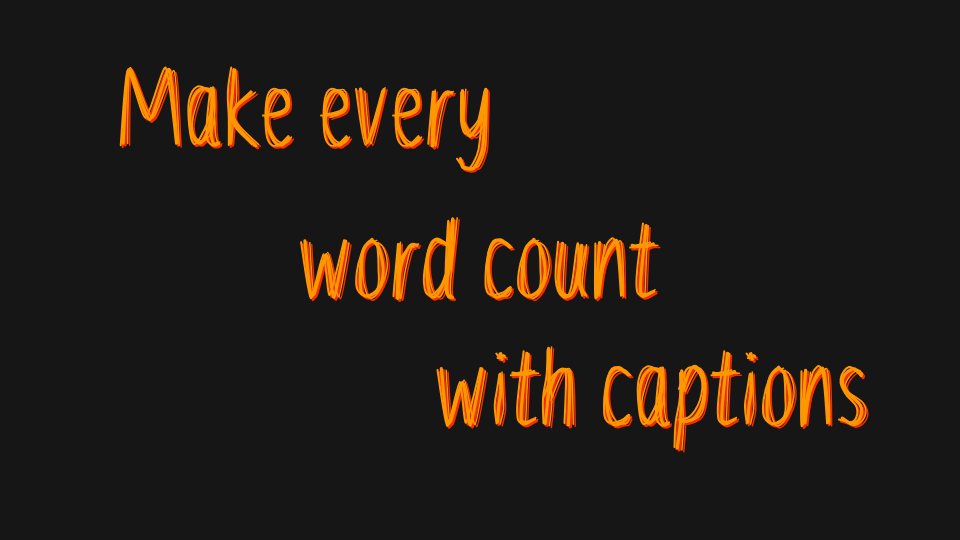 Web onlyEmber Scribble
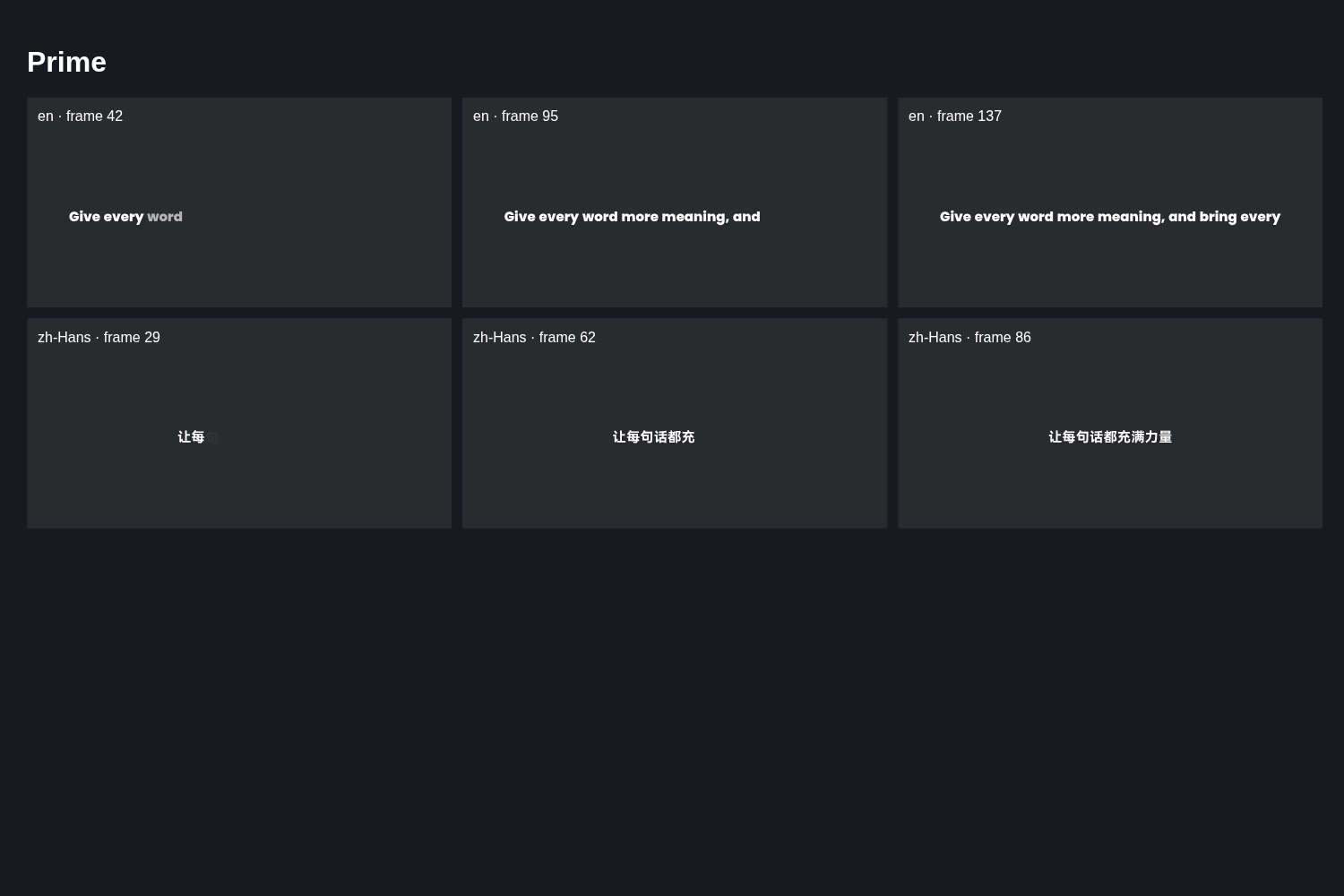 Prime
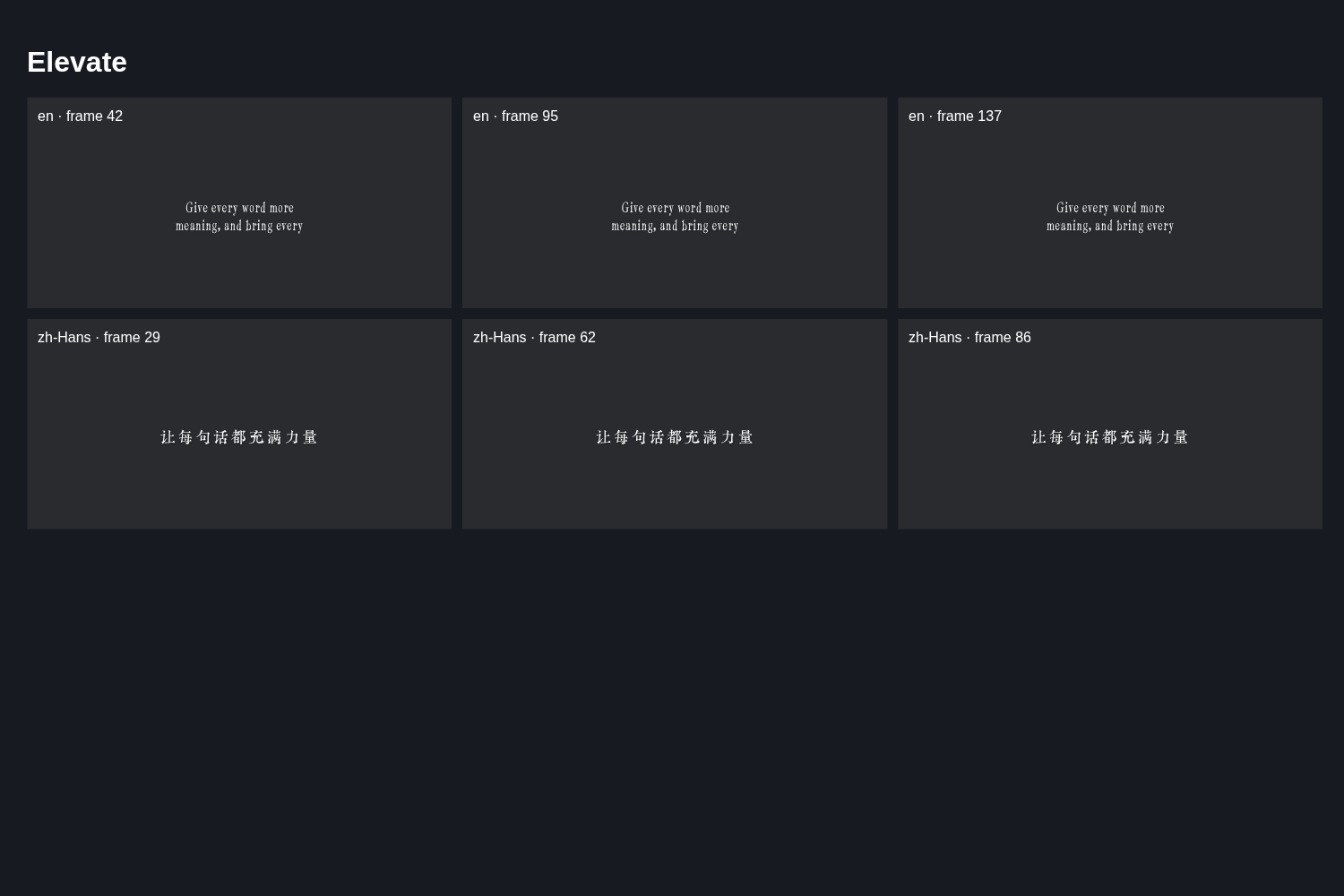 Elevate
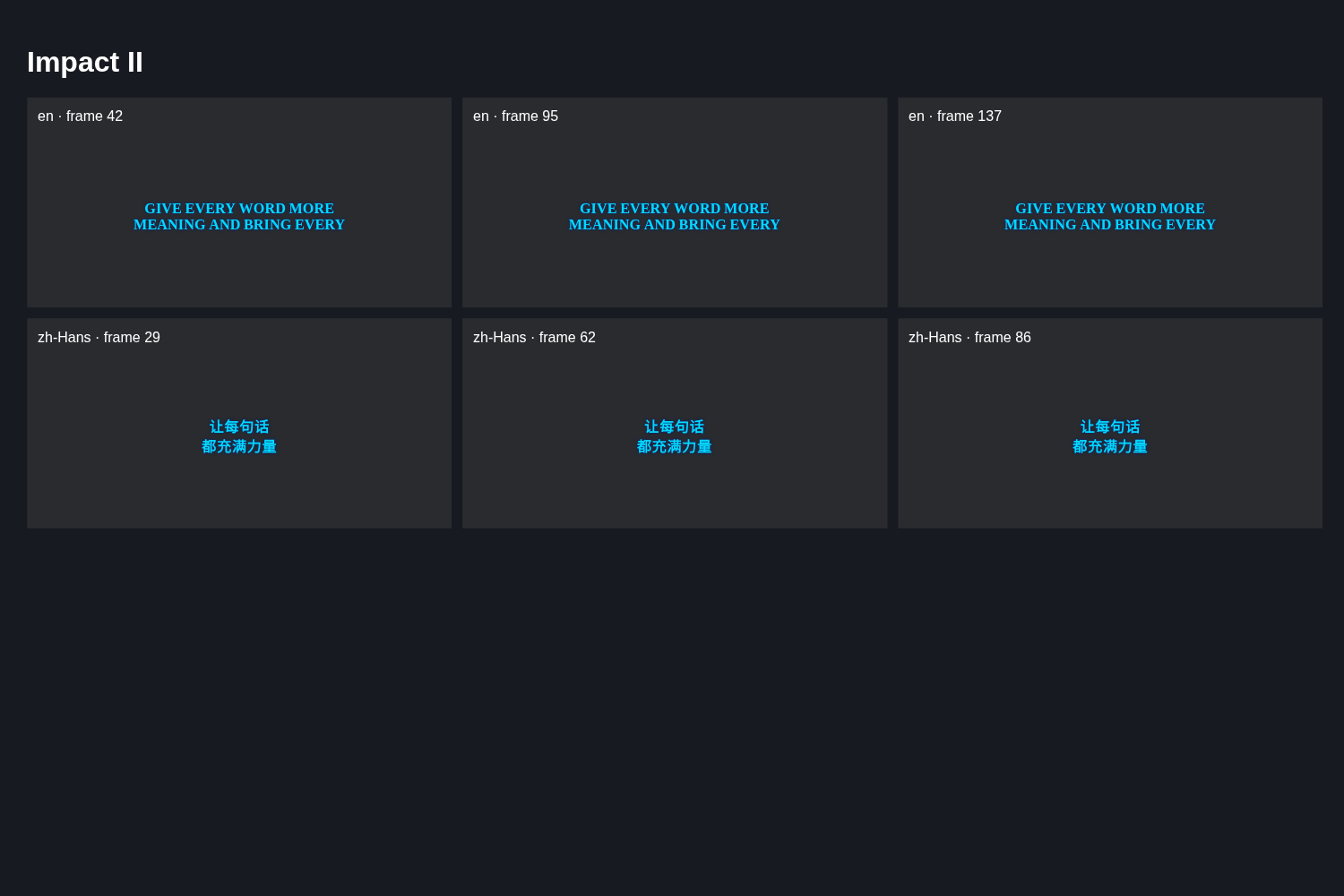 Impact II
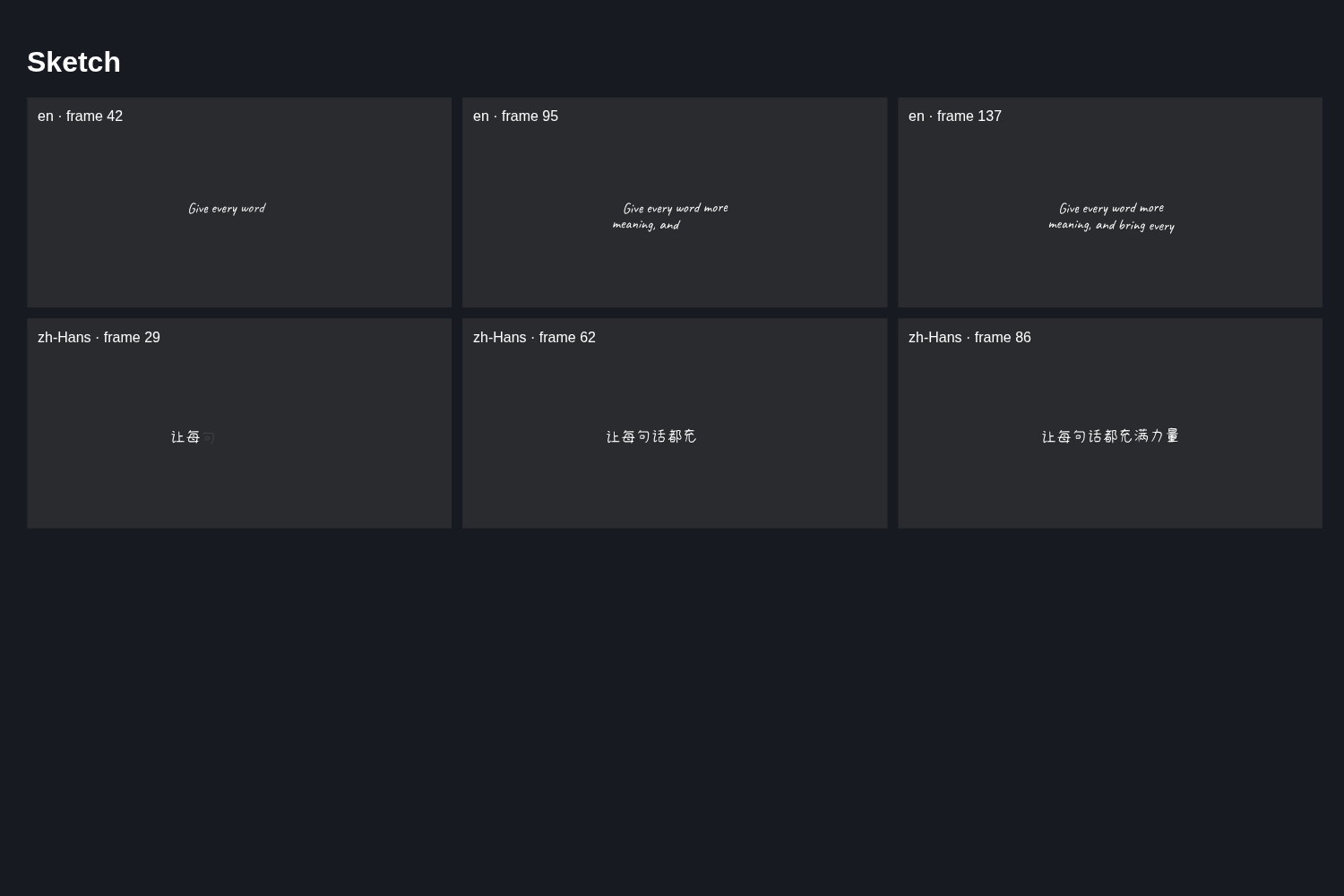 Sketch
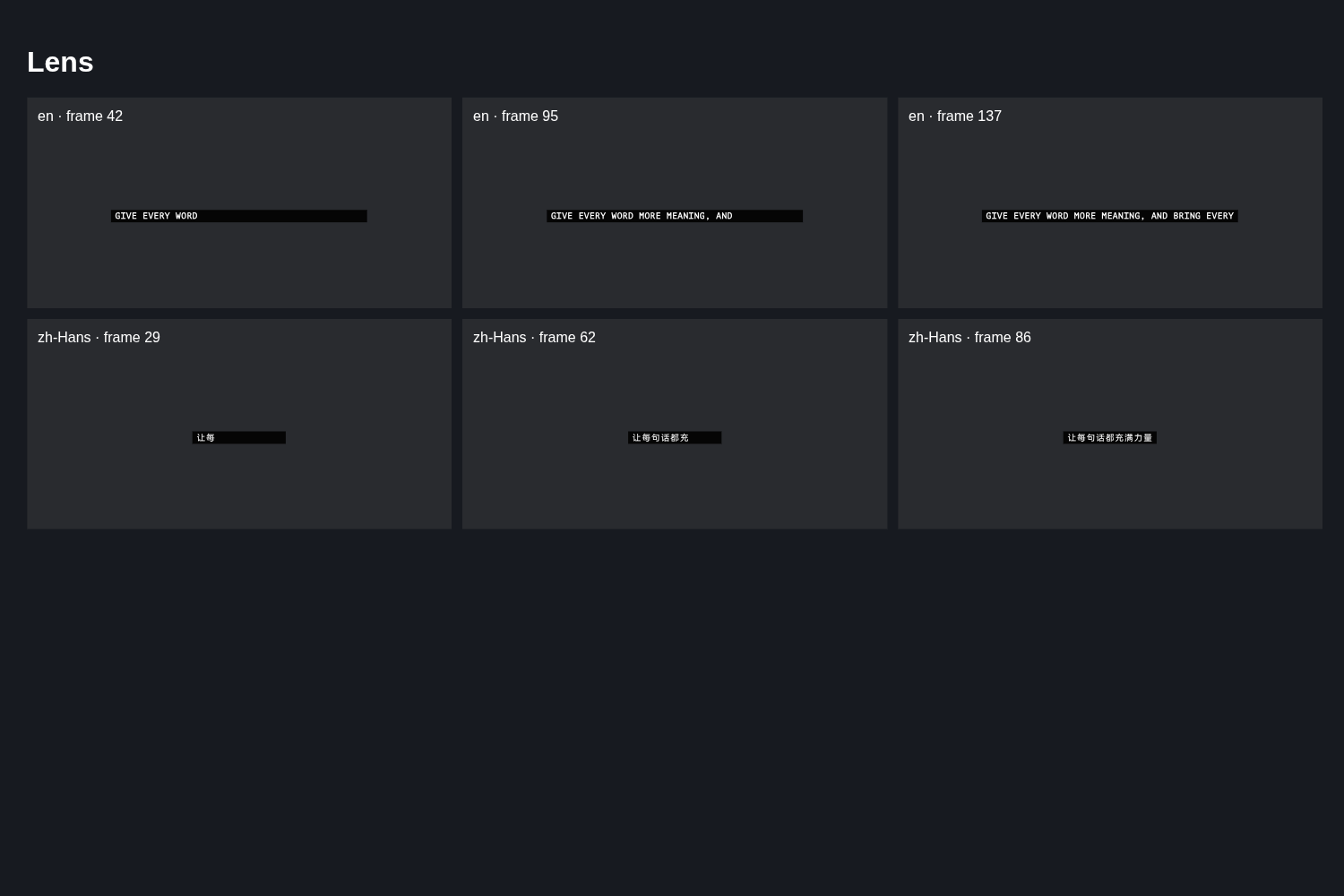 Lens
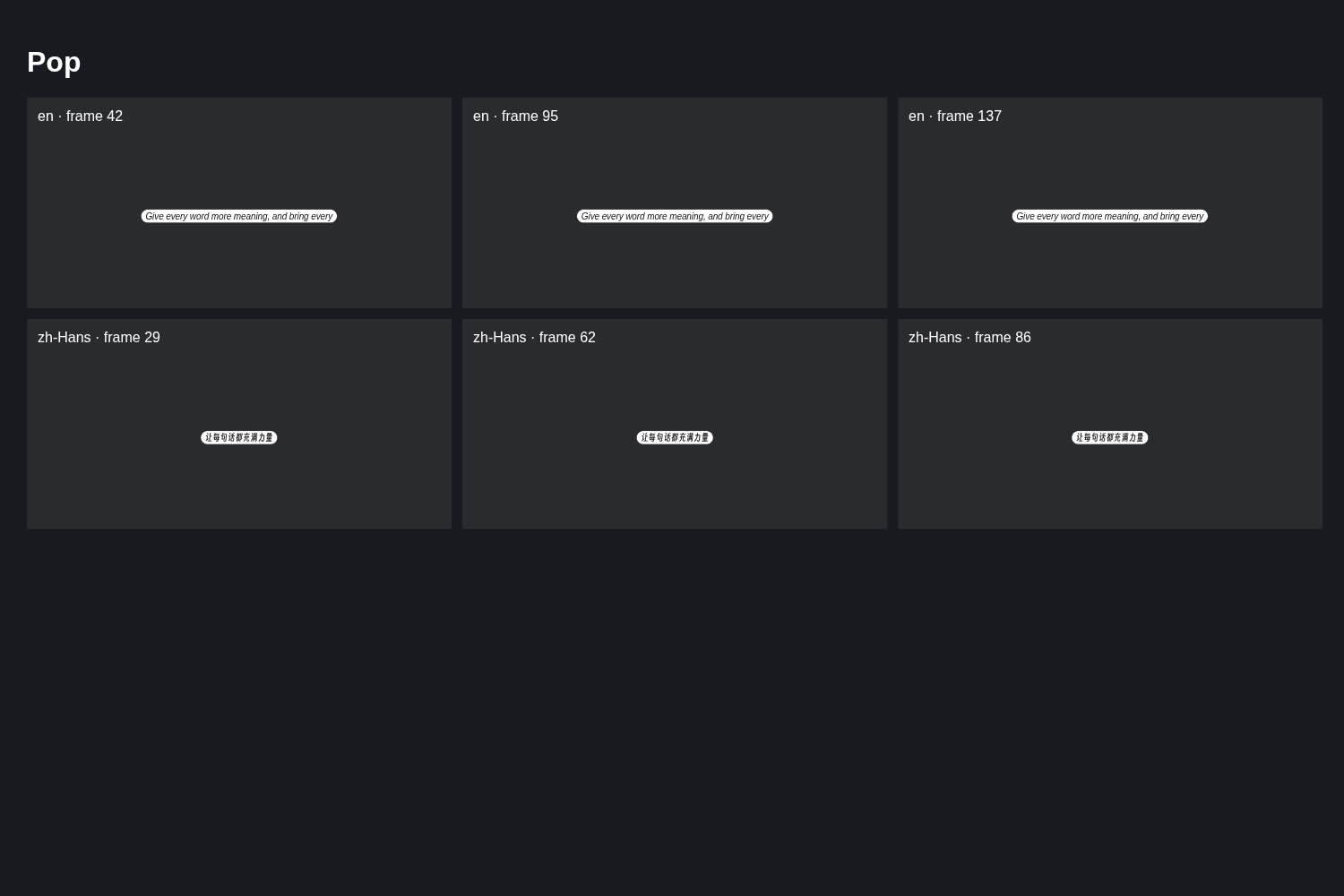 Pop
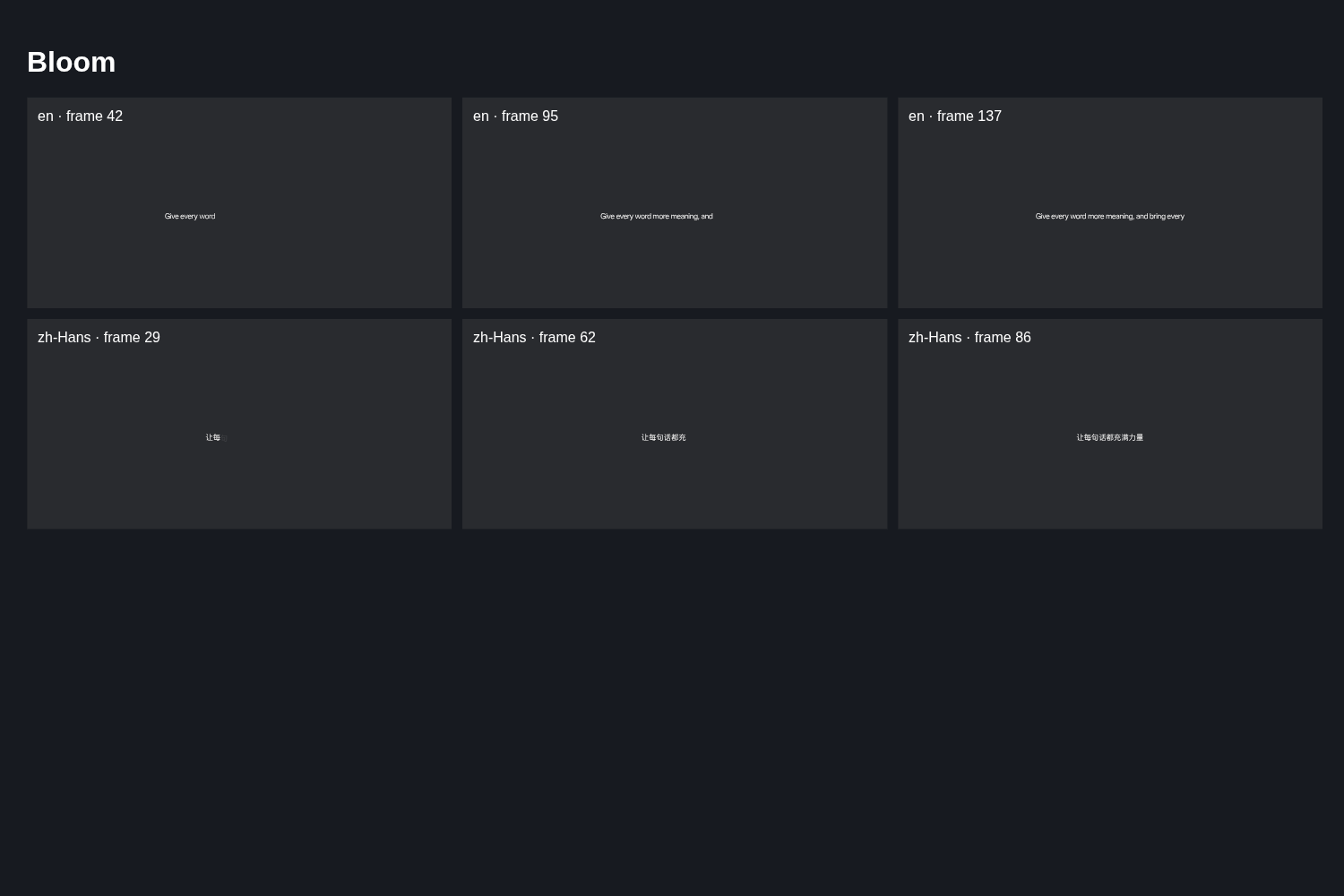 Bloom
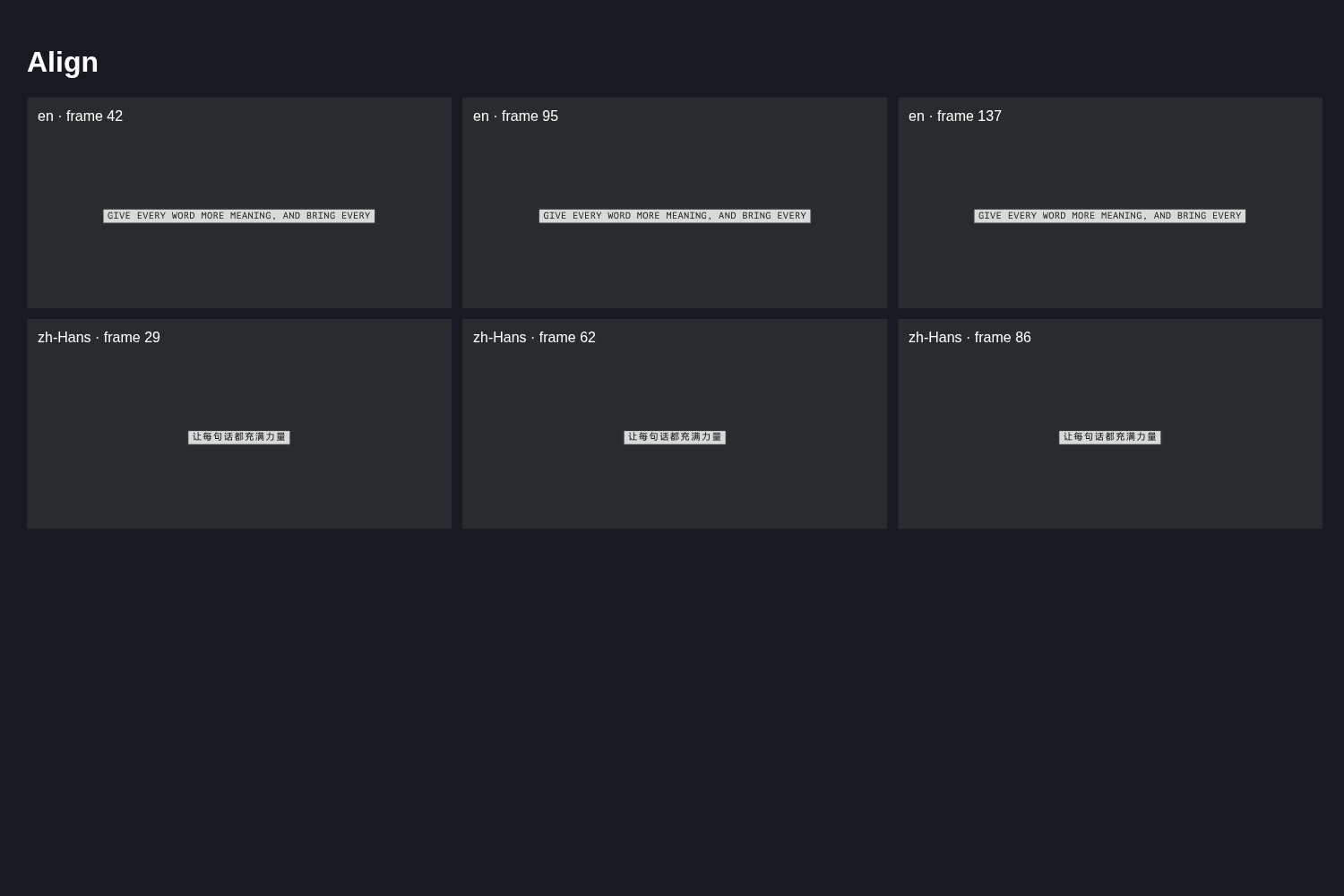 Align
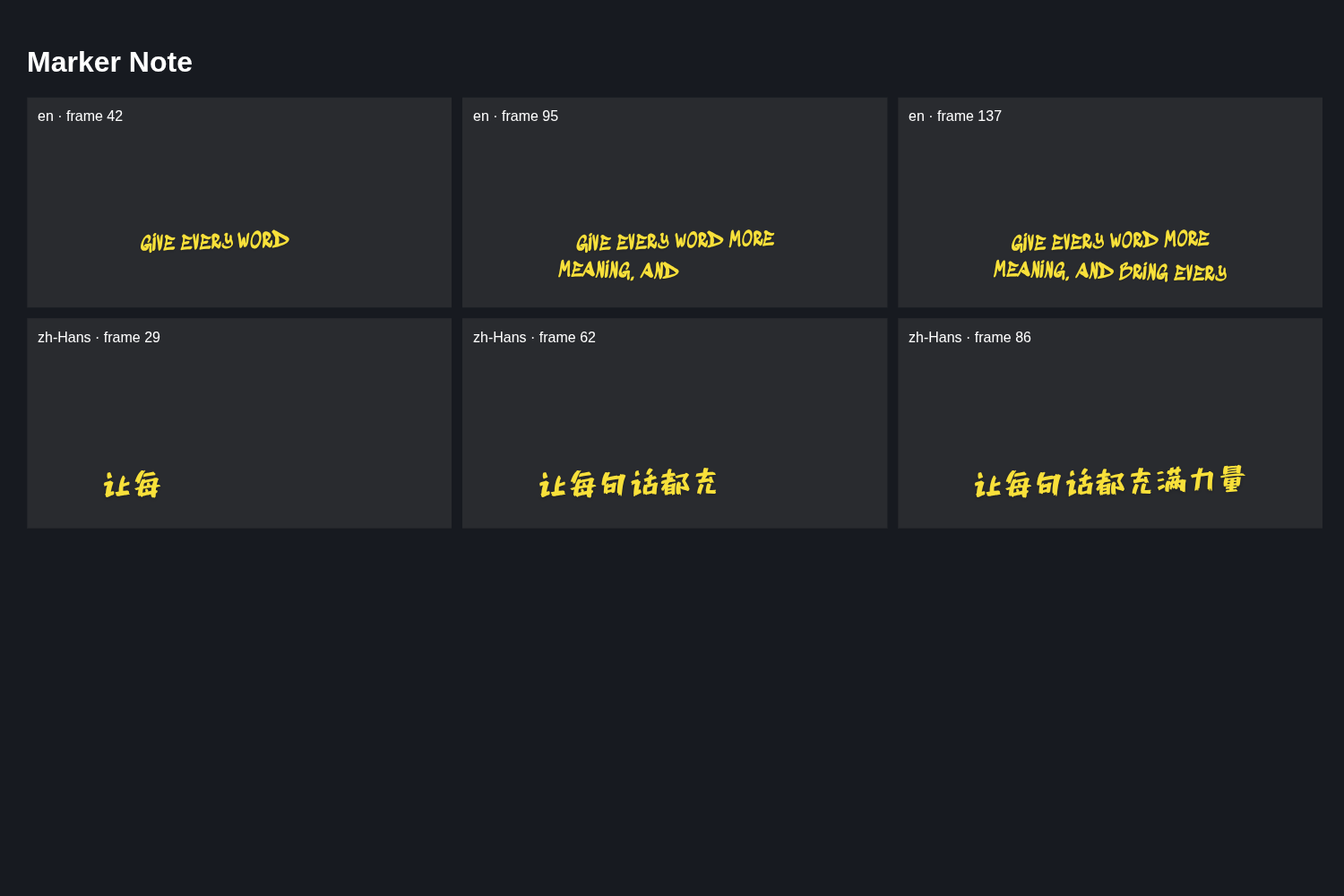 Marker Note
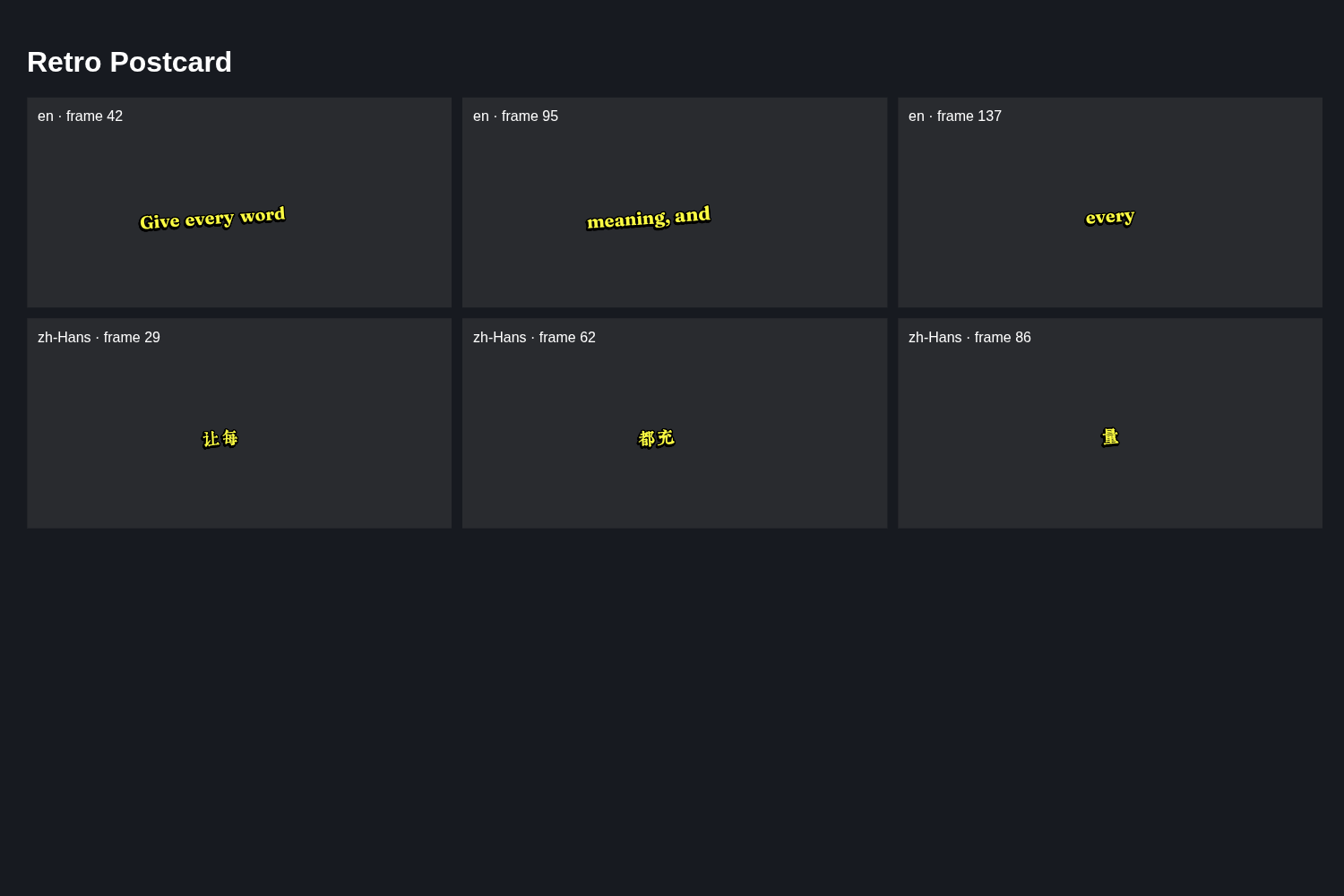 Retro Postcard
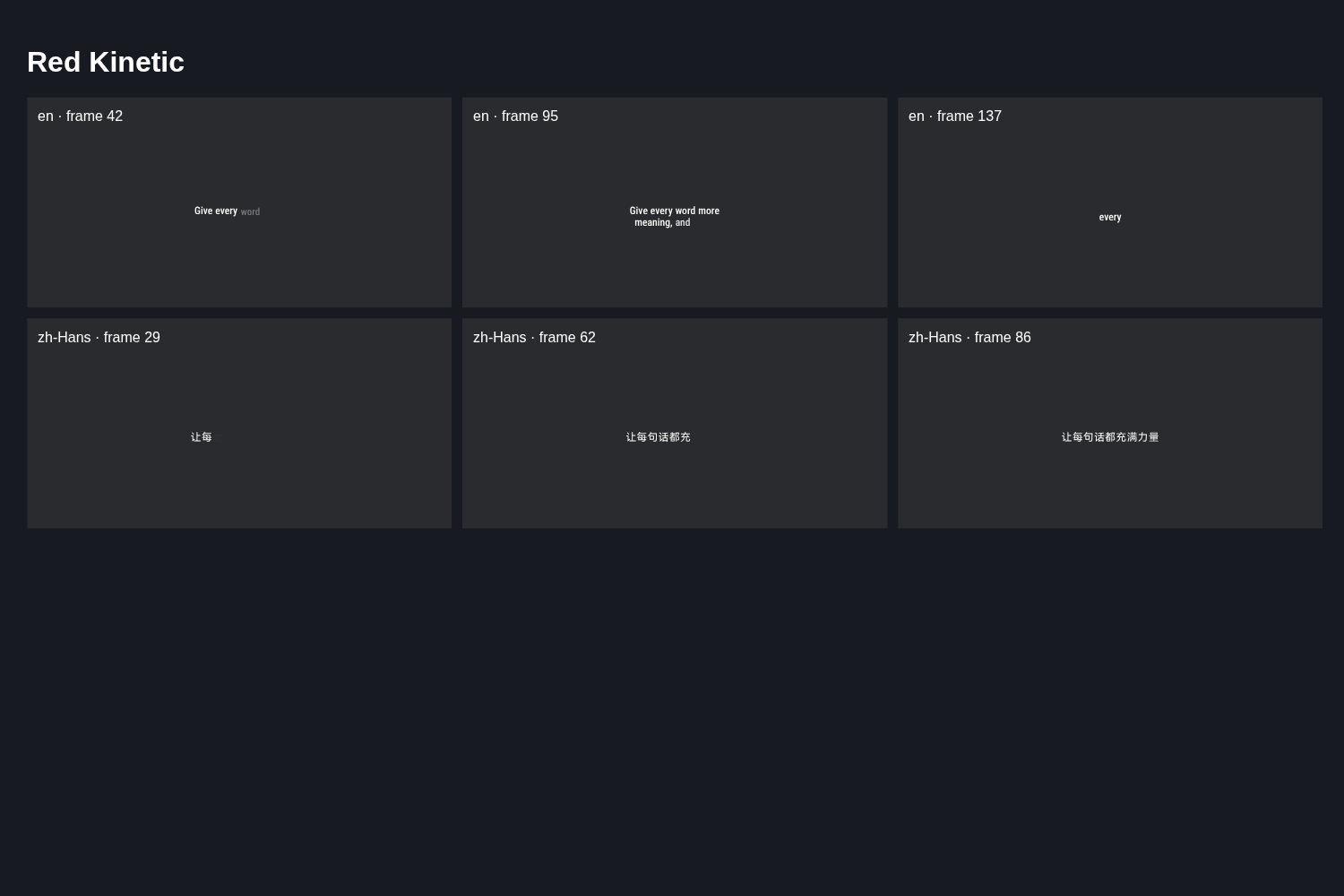 Red Kinetic
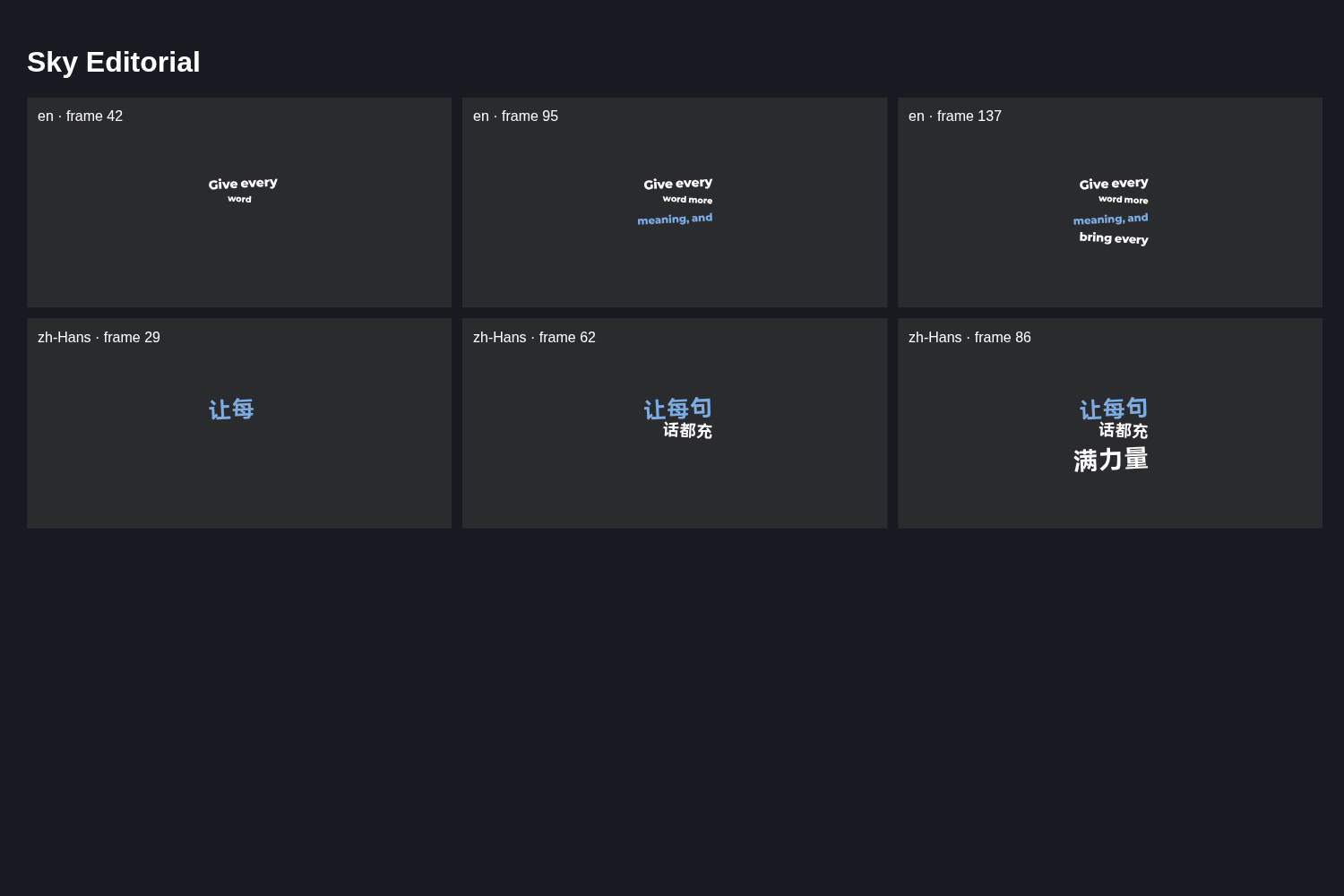 Sky Editorial
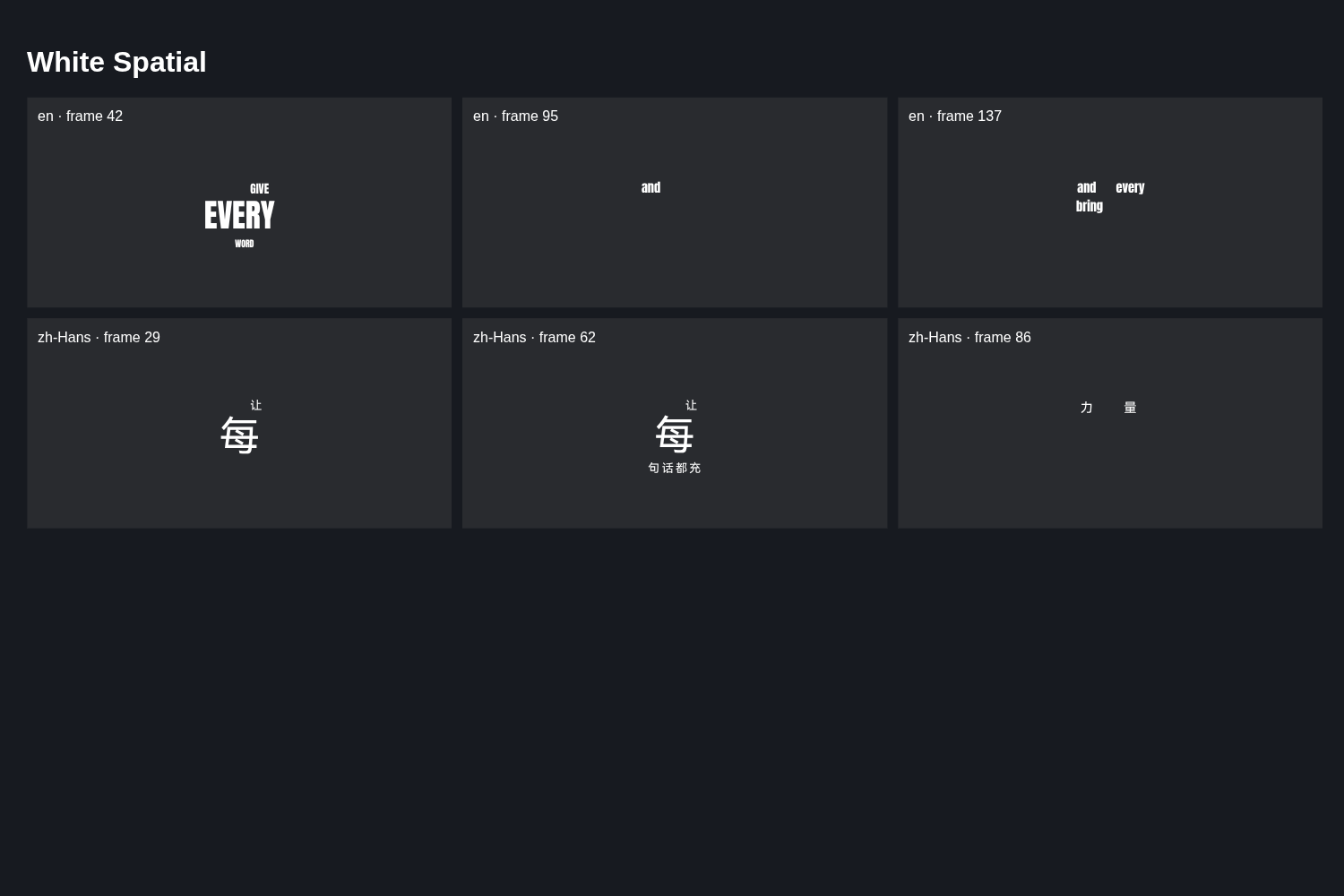 White Spatial
20 animated styles, shown as their published previews. The list follows ChatCut's current style catalog.
Ordinary styles
- Every word landsFeaturedWhite Outline
- Every word landsFeaturedHeavy Sans
- Every word landsFeaturedStory Yellow
- Every word landsFeaturedDeyi Card
- Every word landsPlain
- Every word landsYellow Outline
- Every word landsPersona
- Every word landsSubmagic
- Every word landsWhite Card
- Every word landsStudio Clean
- Every word landsBili Clean
- Every word landsSerif Band
- Every word landsGold Serif
- Every word landsNoir Glass
- Every word landsAtelier Cut
- Every word landsProduct Beam
- Every word landsPaper Stack
- Every word landsThe French Dispatch
- Every word landsDogme
- Every word landsBoyz n the Hood
- Every word landsBubble Pop
- Every word landsSignal Flux
- Every word landsBold Outline
- Every word landsSage Script
- Every word landsXin Qingnian
- Every word landsOrange Shadow
- Every word landsGolden Band
- Every word landsTikTok Pop
- Every word landsNetflix
29 standard styles, redrawn from their published settings with the second word as the highlighted word. The list follows ChatCut's current style catalog.
Which surfaces and languages are supported?
- Web and Desktop. Every style works in ChatCut Web and ChatCut Desktop, except Ember Scribble, which is Web only. Animated styles need Desktop 0.8.7 or later.
- Spoken languages. Ordinary styles have English and Simplified Chinese versions. Animated styles also have Spanish, Japanese and Traditional Chinese versions.
- Other languages. Styles are grouped into a Chinese, Japanese and Korean family and a general family for other scripts. A language without its own version uses the general family. Wording stays as transcribed.
- Translation is separate. A style does not translate captions. Translate first or after, then style the result. See Transcript and Captions.
How do I apply a style?
You need captions on a track first. Open Captions in the playback controls, turn captions on, and wait for transcription to finish.
- Select the chevron beside Captions to open the Caption style menu.
- Hover a style to preview it on your own captions. If your project has none yet, ChatCut shows a sample.
- Select the style. Select Browse all presets for the full gallery, with My presets, Featured, Regular and Dynamic categories.
- In the Inspector, the Preset tab applies a style. The Style tab edits the look afterwards.
Applying a preset replaces the target’s previous look, so old backgrounds, fonts or animation settings do not leak into the new style. A preset also sets formatting such as words per card and text casing.
Apply to all captions or one card
When you select a caption card that has no local changes, Apply to all is on, and the style goes to every unlocked card on the active caption track. A card with its own style changes defaults to editing only itself. Your choice stays while the same card is selected. Choosing Apply to all explicitly replaces local styles on unlocked cards. Locked cards keep their look.
Ordinary Style controls change the track default. They do not touch cards that already have local overrides.
How do I customize and save a style?
After applying a style, change font, color, size, outline or position from the Inspector. Select words inside a card to color or emphasize only those words.
To reuse your tweaked look, open the Caption style menu and choose Save current style…. Give it a name. Saved styles appear under Saved styles (and under My presets in the gallery), where you can apply, rename or delete them. Editing captions later does not change a saved style.
A customized preset is no longer marked as an exact match for the original.
How do I let the Agent pick a style?
Ask the Agent to show options. It reads the catalog, shows preview cards, and changes nothing until you choose. You can also name a style directly.
Add captions to my video and show me a few styles to choose from, including some animated ones. Don't change anything until I pick.
Apply the Kinetic Poster caption style to all captions on @V1 and keep the wording as it is.
If the style you named is not found, the Agent should tell you rather than substitute another one.
The Add captions Skill
The Add captions Skill lets you pick a style with a live preview before the Agent does the work. Upload a video, browse the styles, and select Apply this style. ChatCut transcribes the speech and applies the style. The preview text is only a sample.
Try the Add captions form on its Skill page.
| Field | Options | What it changes |
|---|---|---|
| Your video (required) | Upload or drop one video | The video to transcribe and caption |
| Caption style | Tabs Featured, Regular, Dynamic; select one card | The exact style applied. Cards animate in preview |
| Additional direction (optional) | Free text | Extra instructions for the Agent |
| Apply this style | Button | Starts the job in your project |
Can the Agent make a custom animated caption?
Yes. If no catalog style gives the effect you want, ask the Agent for a custom animated caption or kinetic typography template, called 花字 in Chinese. The Agent writes it from your description and applies it to your real captions, so it follows the actual words and timing.
Tell it:
- The mood and purpose. For example, calm documentary, loud short-form hook, or product launch.
- Any reference. A video, a screenshot, a poster, or a project Design Style. Without one, the Agent designs from your footage.
- What to emphasize. Key words, numbers, or contrasts.
- Where it can sit. Around the speaker, bottom strip, or full-frame on key lines.
Design a custom animated caption style for this talking-head video: warm cream text, one bold word per sentence in orange that pops in on the beat, and keep the text clear of my face. Apply it to all captions and check long and short sentences.
I want kinetic typography captions like the reference video I attached. Group words by meaning, make key phrases larger, and use it as the shared style for the whole caption track.
The Agent applies a custom template once to the whole caption track, so every card inherits it. It then checks sample cards over your footage, including short and long phrases. A custom template belongs to your project. It is not added to the public catalog.
What happens when I export?
Video export renders the active, visible captions into the picture, so your chosen style, including animation, is part of the video. Hidden captions are not included. The SRT and TXT exports contain text only, with no styling. Check the result in the Viewer first. See Export Video, Audio, and Subtitles.
What are the limits and tips?
- Check your language. Preview on your own text. Ordinary styles carry fallback fonts so Latin and Chinese can share one style, but ChatCut does not certify font coverage for every language.
- Withdrawn styles. If a style is later withdrawn from the catalog, projects that already use it keep it.
- Wording edits are separate. Fix spelling in the caption cards. Changing style does not alter text or timing.
- Credits. Picking a style from the menu is a manual edit. Agent requests use credits. See Credits.