The Product ads & UGC Skills make short selling videos that look like a real person filmed them: a selfie review, an unboxing, a try-on, a before-and-after. You pick the look, give ChatCut photos of your product, and it generates the video. Most styles also ask you to choose a presenter. There are 14 styles in this category, and each has its own page.
You run them from a Skill’s page in the web app or in ChatCut Desktop 0.7.7 or later.
Which styles are there?
Hover a card to preview it, or select it to open that style’s page. The first four are the most used over the last 30 days.
14 styles. Hover to preview, select one to open its Skill page.
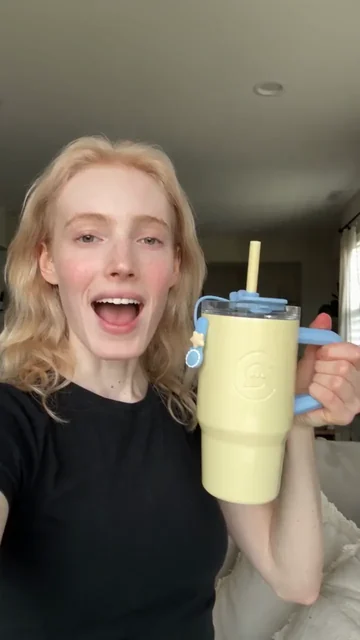 PopularCozy selfie product review
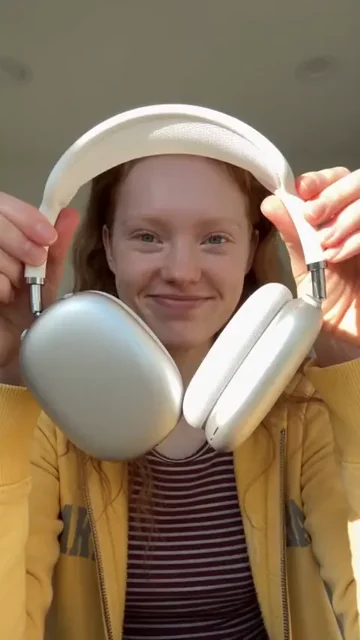 PopularCamera-facing product review
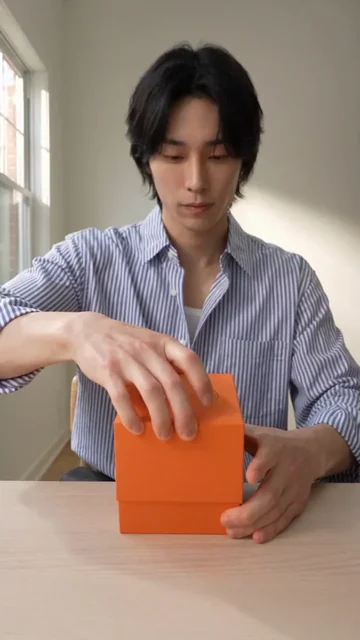 PopularQuiet creator unboxing
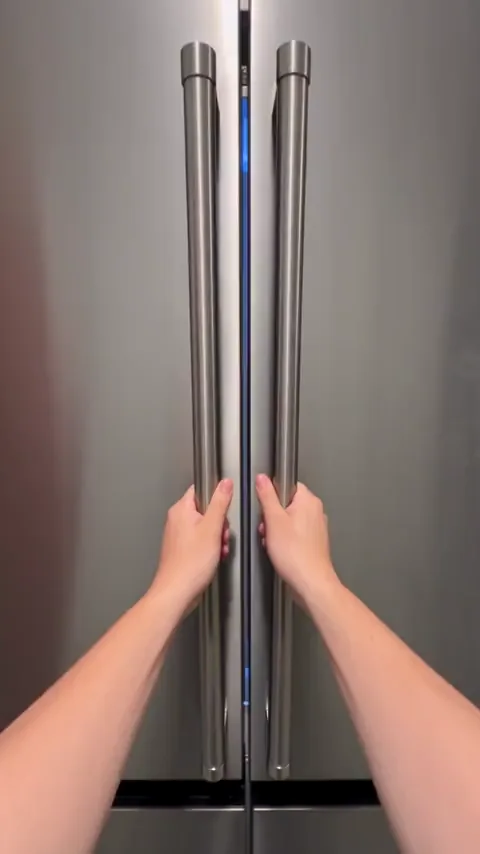 PopularSatisfying product restock
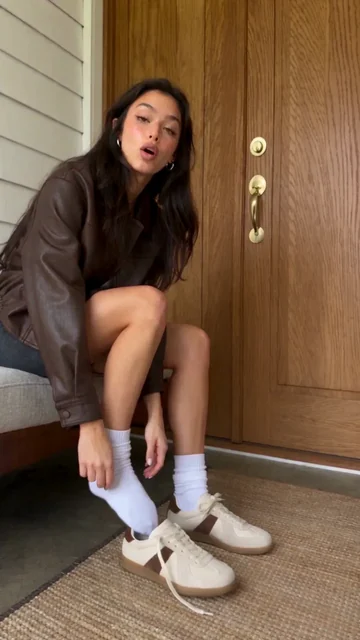 On-Foot Try-On
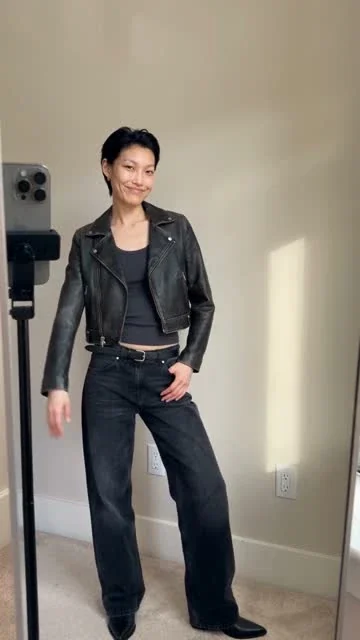 Mirror outfit try-on
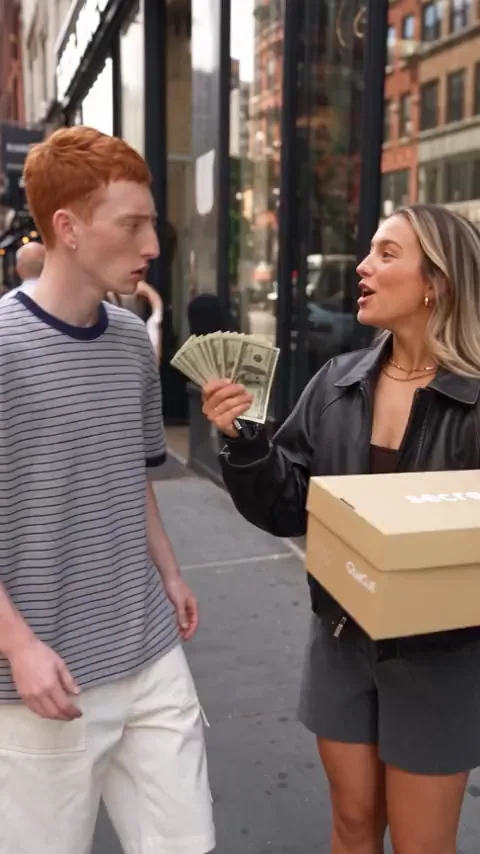 Mystery-box product reveal
 Before and After
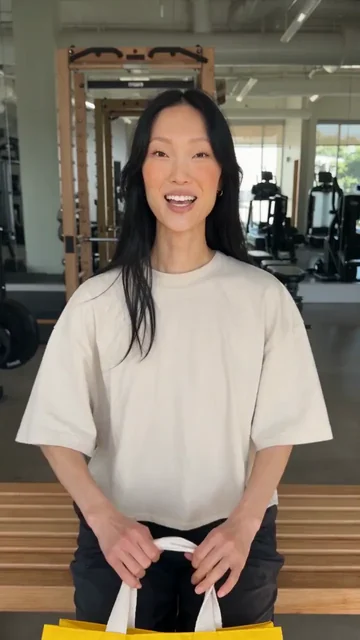 Unbox and try on
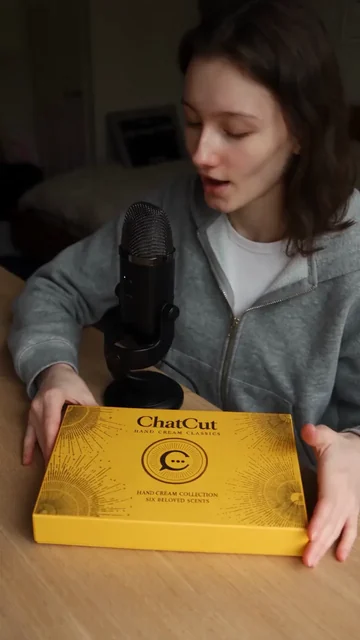 Window-light ASMR unboxing
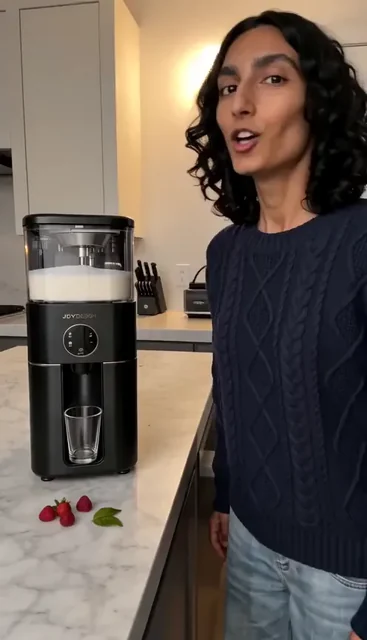 Hidden-feature product demo
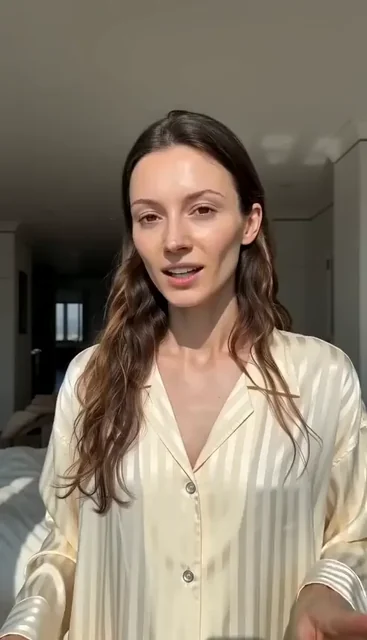 Step-by-step accessory tutorial
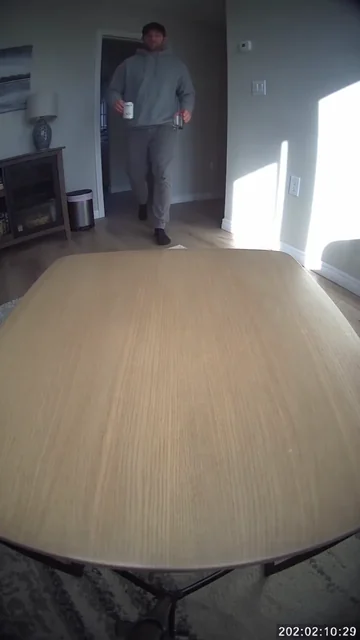 Caught-on-camera product story
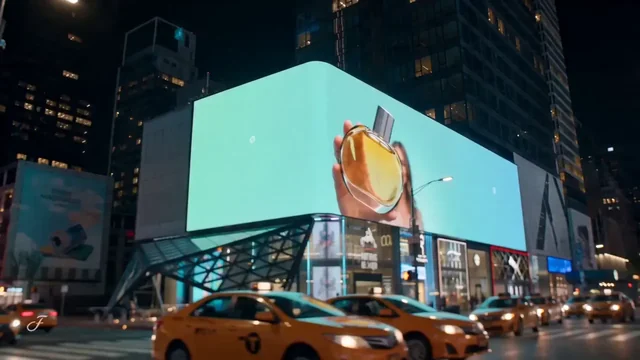 Product in Times Square
How do I choose a style?
Choose by what your product needs to show, not by which video looks nicest. The styles fall into five looks.
- Someone talks about it. Cozy selfie product review is a relaxed recommendation filmed in a cozy home. It is the most used style. Camera-facing product review is a direct-to-camera review with product close-ups. Use either one for benefits and details.
- Opening the box. Quiet creator unboxing is a creator-led unboxing with close inspection and commentary. Window-light ASMR unboxing focuses on packaging textures and handling sounds. Mystery-box product reveal builds suspense before the reveal.
- Wearing it. Mirror outfit try-on shows garments step by step in a mirror. Unbox and try on moves from the package to the outfit. On-Foot Try-On is for shoes.
- Showing how it works. Hidden-feature product demo is a narrated how-to. Step-by-step accessory tutorial shows each step in close-up. Before and After shows product use and results.
- A story or a spectacle. Satisfying product restock is a rhythmic first-person video of sorting and arranging products, suited to food and household items. Caught-on-camera product story is a humorous short film from a fixed security-camera view. Product in Times Square puts your product on a Times Square billboard for launches and brand awareness.
What do I need before I start?
- Product photos, front shot first. Upload clear photos of the real product. For unboxing styles, also include the packaging. For shoes, use shoe photos. For Unbox and try on, you upload both the packaging or shopping bag and the garment.
- A presenter. Most styles ask you to choose a presenter or upload your own photo. Restock and Caught-on-camera do not, and neither does Times Square.
- Key benefits and any exact text. Write what the product really does. The Agent writes scripts only from what you or your saved Product state, so a claim you leave out will not appear.
- A saved Product, if you have one. A Product saved in My Assets keeps its photos and description for reuse. See Characters and Products. In an Agent chat you can attach it, or give a product page link. See Web Page Assets.
- A paid plan and credits. Video generation needs a paid plan and uses credits. See Credits and Free and Pro.
How do I run it?
- Open the style’s page from the gallery above, or open Skills in the editor and choose it.
- Choose a presenter, if the form asks for one.
- Upload the product photos, with the front shot first.
- Add any direction in the optional field.
- Check the credit estimate the form shows, then select Create video.
- Follow the progress, then review the result before you edit or export it.
If you ask the Agent for the video in a chat instead, a generation confirmation card can appear before the job starts. Review it, then choose Allow. See Generation Confirmations.
Fill in the form
This is the form for Cozy selfie product review, the most used style. Try it here: it opens ChatCut with your choices filled in.
Try the Cozy selfie product review form on its Skill page.
| Field | Options | What it changes |
|---|---|---|
| Character | Choose a presenter, or Upload your own | Who appears on camera |
| Product photo | Upload or drop files | The product the video shows. Put the clearest front shot first |
| Additional direction | Free text, optional | Benefits, the line you want said, the scene, or things to avoid |
| Create video | Button, with a credit estimate | Starts the generation |
The other styles use a similar form with small differences:
- Camera-facing review, Mystery-box reveal, Hidden-feature demo, Step-by-step tutorial: same fields as above.
- Quiet creator unboxing, Window-light ASMR unboxing: the photo field is Product and packaging.
- Mirror outfit try-on: you describe the garments, colors, and materials instead of uploading photos.
- On-Foot Try-On: adds Aspect ratio and Duration, and the photo field is Shoe photos.
- Before and After: the button reads Start generating.
- Satisfying product restock, Caught-on-camera story: no presenter, only product photos.
- Product in Times Square: product photo (JPG, PNG or WebP, up to 5 MB) and Exact brand text.
Prompts you can copy
Use these in a chat with the Agent when your product is a saved Product or a page link.
Make a vertical UGC-style selfie review of my saved product @Glow Serum. Use only the benefits saved on the product. Casual tone, filmed at home. Show me the script before you generate anything.
Here is my product page: [link]. Read the page, pick the three clearest selling points, and propose a quiet unboxing ad. Do not mention a price or discount unless the page shows one.
I sell running shoes. Use my uploaded shoe photos to make an on-foot try-on video, 9:16, about 10 seconds. Show the sole and the fit. Do not claim anything about comfort that I have not given you.
What does ChatCut do for me?
- Reads your inputs. It uses your photos, your saved Product or page details, and your direction.
- Writes a script from facts. For a saved Product, the Agent uses the saved description, selling points, price, and specs. It does not invent claims, prices, or ingredients.
- Keeps your product accurate. Appearance details you save, such as label text or colors, are kept exact in the generation.
- Generates the video. It sends one generation job and shows the credit estimate first.
- Delivers the result. You review it and keep editing in the editor.
What do I get?
You get a short generated video. The form’s own limits depend on the style. Most offer 5, 10, or 15 seconds. Before and After is 12 to 15 seconds. On-Foot Try-On accepts 4 to 15 seconds. Times Square is 10 or 15 seconds in 16:9. Output is 720p. You can bring it into a project, add captions or music, and export. See Credits for how to check the final charge.
What are the limits and tips?
- Each take is a separate paid job. Asking for another version charges again. Check the estimate before you submit.
- Check the product, not just the mood. Compare label text, logo, color, and shape against your real product before you publish.
- Do not expect claims you did not provide. The Agent writes from saved facts. If you want a price, a discount, or a result, state it.
- Avoid prominent brand logos and well-known characters. The video models reject some content. Characters from major franchises and the likeness of public figures can be blocked.
- Use clear, single-product photos. Group shots and heavily retouched marketing images give the model a worse idea of the product.