Viral Effects Skills generate a short video in a popular social-video style from a character photo you provide. Each effect is its own Skill with a fixed idea: a camera that orbits a person hanging by one hand, identical clones filling a street, buildings folding overhead, a time freeze, and so on. You upload a clear image of your character, optionally add a request, and ChatCut generates a new video. The effects run in ChatCut Web and ChatCut Desktop.
There are 14 effects. They use paid video generation, so they need a Pro plan and credits.
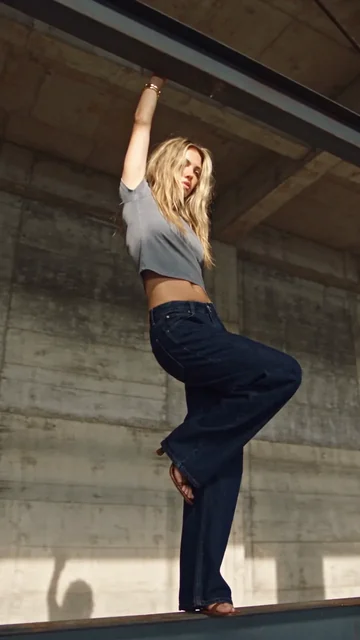
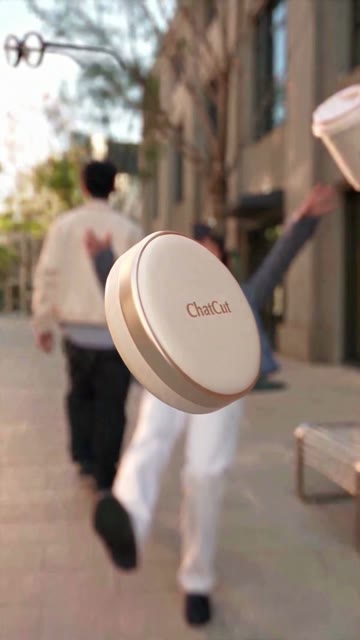
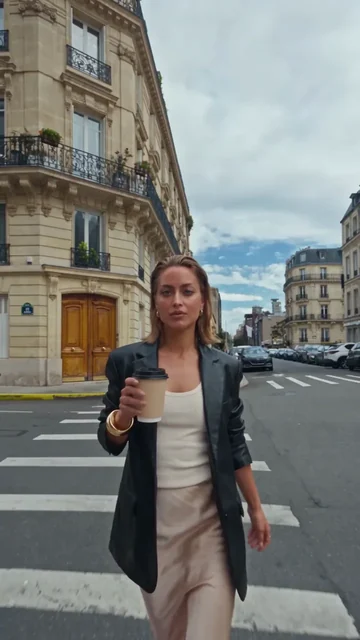
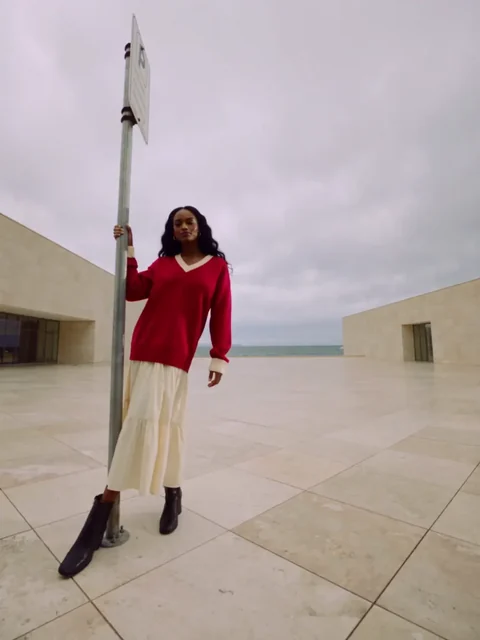
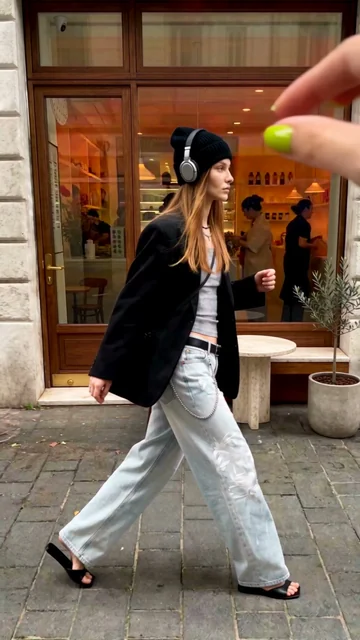
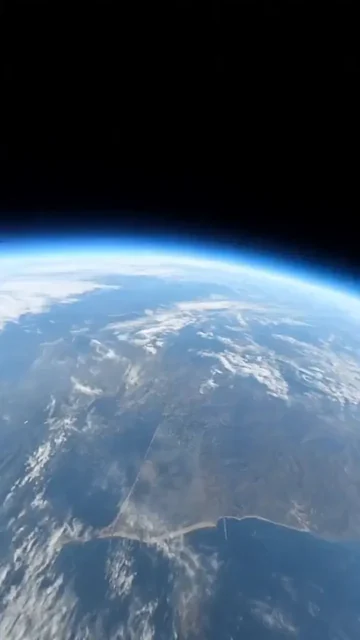
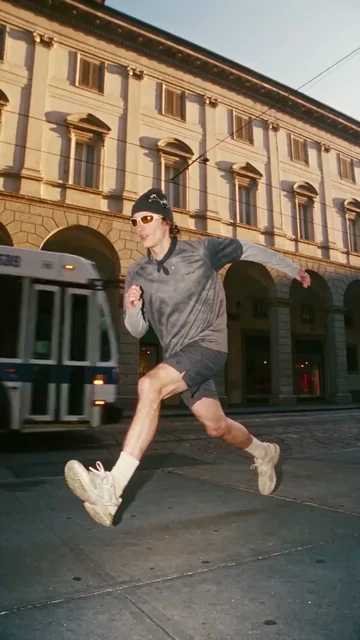
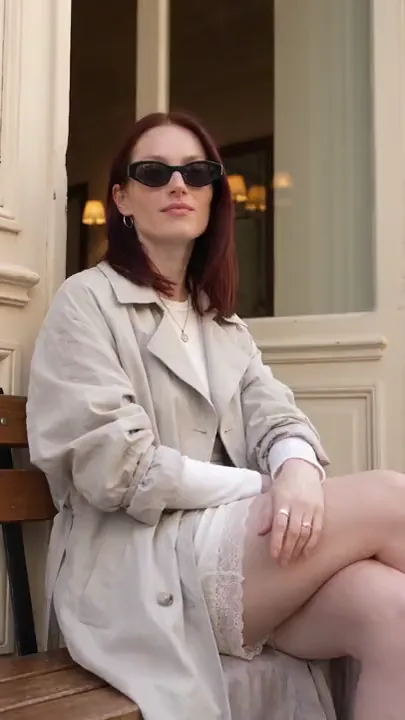
14 styles. Hover to preview, select one to open its Skill page.
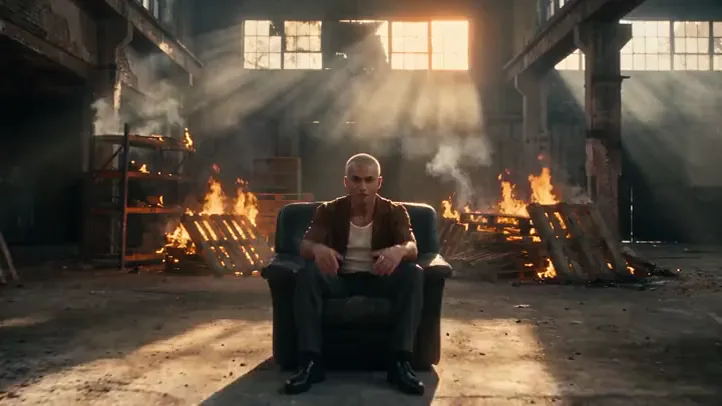
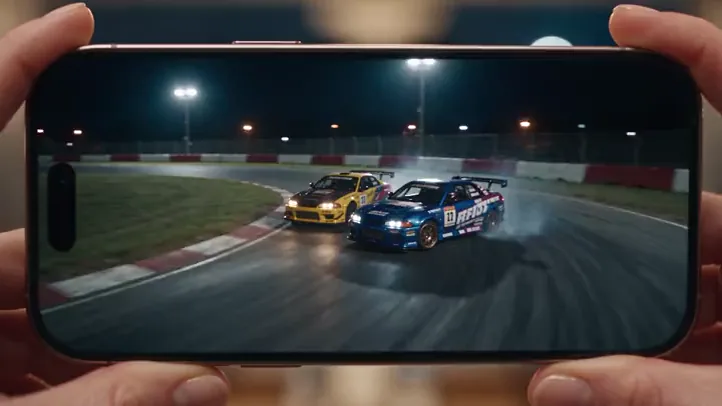
How do I choose an effect?
ChatCut also files some effects under extra tags: Camera Moves, Epic Scenes, Surreal Moments, Clones and Giants, Scene Transitions, Transformations, Time Effects, and Horror Scenes. Only a few effects carry these tags, so the groups below follow both the tags and each effect’s description.
Camera moves and time effects
- One-shot City Dive. One continuous camera move dives from Earth orbit through a city to your character. Tagged Camera Moves, Surreal Moments, and Time Effects.
- Time Pause. A time-freeze short where the camera moves through a street scene with your character suspended mid-action. Same tags.
- Hanging Orbit. Your character hangs from one hand while the camera orbits around them. It is the most used effect in the last 30 days.
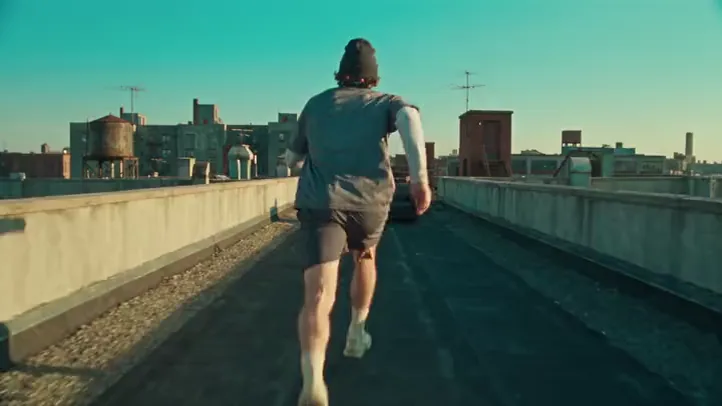
- Urban Parkour. A continuous parkour shot with a close-following camera. You upload an athlete reference and, optionally, a rooftop scene image.
Epic and surreal scenes
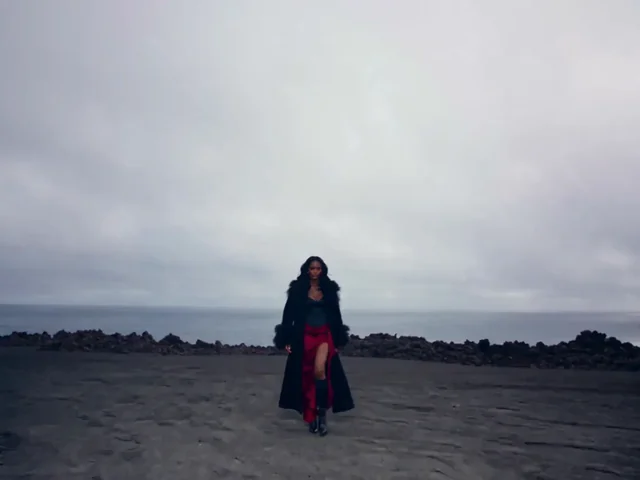
- Folding Streets. The character walks through a street as buildings and roads fold overhead.
- Street Sticker. Your character and a street scene combine through a sticker-peel effect. Tagged Epic Scenes and Surreal Moments.
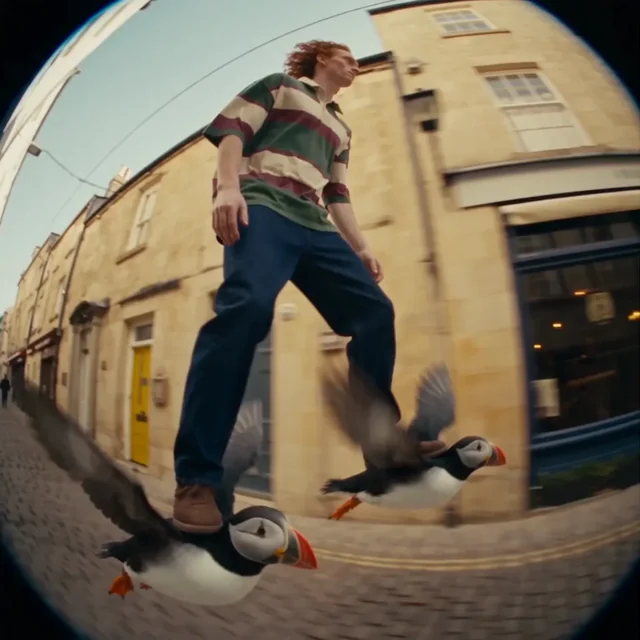
- Puffin Express. The character glides down a street with a puffin under each foot, filmed with a fisheye tracking camera.
- Gravity Takes a Break. A floating fall that shows three items to camera in order. It is the second most used effect.
Clones and giants
- Clones on the Street. Identical clones appear across the scene, ending with a close-up clone covering the lens with one hand.
- Giant Companion. Normal-sized and giant versions of the same character, as the giant lands and leaps out of frame. Tagged Clones and Giants, Scene Transitions, Transformations, and Horror Scenes.
Talking and performing
- Prop Microphone. The character catches a falling object, uses it as a microphone, and introduces the item. Dialogue is generated automatically.
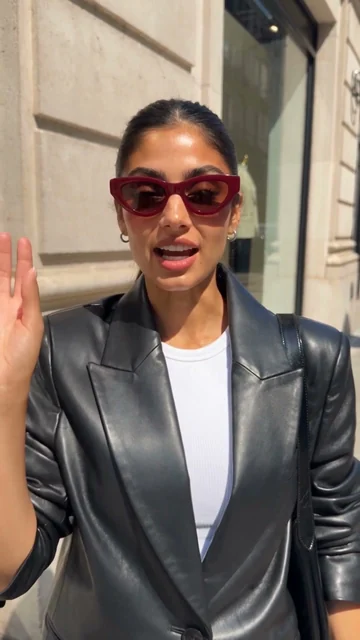
- Bump & Tell. The camera bumps into the person, who turns around and introduces what they are wearing or carrying. Dialogue is generated automatically.
- Instant Rap and Follow-cam Rap. Short performance videos built from your references and a brief.
What do I need before I start?
- A Pro plan. These effects show a Pro badge. See Free and Pro.
- A clear character image. Most effects take one image of one person. Hanging Orbit asks for an adult. Gravity Takes a Break takes a main character, an optional second character, and up to three items to show. Urban Parkour takes one or more references.
- Credits. Video generation is charged by generated seconds, model, and resolution. See Credits and Generation Credits.
- Optional requests. A change of setting or outfit, for example.
How do I generate an effect?
- Open the effect’s page from chatcut.io/skills or from Home.
- Upload your character image. Add any request in Other requests.
- Check the estimated cost on the form.
- Select Create my video. The submission opens a progress view.
- When it finishes, review the video. Download saves it, Continue editing opens it for more editing, and Regenerate starts a new run. Stop cancels a run that is still going.
Fill in the form
The form differs a little between effects. This is Hanging Orbit, the most used one. Try it here: it opens ChatCut with your choices filled in.
Try the Hanging Orbit form on its Skill page.
| Field | Options | What it changes |
|---|---|---|
| Upload character | One clear character image | The face, hair, and outfit of the person in the video |
| Other requests | Optional text | Scene or outfit changes. Leave it blank to keep the example scene |
| Estimated cost | Shown on the form | The credits the run is expected to use |
Hanging Orbit is a fixed format: 9 seconds, vertical 9:16, 720p. Several other effects fix their format too:
| Effect | Length | Shape |
|---|---|---|
| Gravity Takes a Break | 12 s | 9:16 |
| Folding Streets | 8 s | 9:16 |
| Clones on the Street | 7 s | 3:4 |
| Puffin Express | 8 s | 1:1 |
The other effects (such as One-shot City Dive, Time Pause, Street Sticker, Prop Microphone, Urban Parkour, and the two rap effects) have a Generation settings area. There you choose a duration from 4 to 15 seconds and an aspect ratio of 9:16, 16:9, 1:1, 3:4, 4:3, or 21:9. Prop Microphone and Bump & Tell also let you choose the spoken language.
Prompts you can copy
Use these in Other requests, or with the effect attached in the AI composer.
Keep my character's face and outfit. Set the scene on a quiet night street with wet pavement and neon signs.
Use @character-photo for the main character. Put a red jacket on them and keep the camera movement exactly as in the example.
For Prop Microphone or Bump & Tell:
Introduce my new water bottle in a friendly, casual tone. Speak English and keep the clip short.
What does ChatCut do for me?
- Keeps the effect’s motion. The effect is built from an approved example video. The generated video follows its action, camera path, and timing.
- Swaps in your character. Your image sets the face, hair, and outfit. Your request changes only the details you name.
- Generates once. The form submits one generation. It does not start a second one.
- Writes dialogue when needed. Prop Microphone and Bump & Tell generate dialogue from your request.
What do I get?
You get one new video per run, at 720p. The progress view shows the credits used and the resolution. Download it, or choose Continue editing to keep working on it. Each Regenerate is a new run and a new charge.
What are the limits and tips?
- The result is a new video, not a copy. The effect is recreated, not reproduced pixel for pixel.
- Review every result. Check the face, the hands, and any items that should stay the same.
- Stopping may not stop the charge. If you stop a run after generation has started, it may still finish and use credits.
- Confirm before you pay. If you run an effect through the Agent, a confirmation card can show the plan and estimate before generation. See Generation Confirmations.
- Use clear, well-lit images. One person per image works best.